> ## Documentation Index
> Fetch the complete documentation index at: https://www.thundercompute.com/docs/llms.txt
> Use this file to discover all available pages before exploring further.
# Fine-tune with Unsloth Studio
> Run a small Gemma 4 QLoRA fine-tune in Unsloth Studio on a Thunder Compute GPU instance.
This guide runs a short text fine-tune in Unsloth Studio with `unsloth/gemma-4-E2B-it`. It is meant to prove the setup, dataset format, training path, and adapter output before you move to a larger dataset.
This setup path and Gemma 4 E2B QLoRA training profile were verified on a single Thunder Compute A100 80 GB instance with Unsloth Studio 2026.5.2. The sample dataset below is intentionally tiny so you can confirm the workflow before training on a real dataset.
## Prerequisites
Complete [Run Unsloth Studio](/guides/unsloth-studio) first. You should have:
* A Thunder Compute GPU instance running Unsloth Studio
* Port `8888` forwarded to a public Thunder Compute URL
* Browser access to the Unsloth Studio `Train` page
## Choose a model
Use `unsloth/gemma-4-E2B-it` for the first run. It is current, small enough for a quick validation run, and available from the Unsloth model presets.
If you want to scale the same flow after the first run works, use a larger available GPU and choose a larger supported model such as `unsloth/gemma-4-E4B-it`. `unsloth/Qwen3.5-2B` is also available in Studio, but start with the Gemma 4 E2B path below to keep the first fine-tune simple.
## Prepare a small dataset
Create a JSONL file in Alpaca format on the computer where your browser is open. Studio's `Upload` button reads from your browser's local filesystem, not from the SSH session on the instance.
Each line should contain `instruction`, `input`, and `output` fields. This demo trains the model to write compact plant-care cards in a consistent format:
```bash theme={null}
cat > plant-care-mini-alpaca.jsonl <<'EOF'
{"instruction":"Write a compact plant care card.","input":"Plant: basil. Location: sunny kitchen windowsill.","output":"Care card:\\nLight: Bright sun for most of the day.\\nWater: Keep soil lightly moist, not soggy.\\nWatch: Pinch flowers early so leaves stay flavorful."}
{"instruction":"Write a compact plant care card.","input":"Plant: snake plant. Location: low-light bedroom corner.","output":"Care card:\\nLight: Tolerates low light, grows faster in indirect light.\\nWater: Let soil dry fully between waterings.\\nWatch: Yellow mushy leaves usually mean overwatering."}
{"instruction":"Write a compact plant care card.","input":"Plant: pothos. Location: office shelf with indirect light.","output":"Care card:\\nLight: Medium indirect light is ideal.\\nWater: Water when the top inch of soil is dry.\\nWatch: Long bare vines can be trimmed to encourage fuller growth."}
{"instruction":"Write a compact plant care card.","input":"Plant: mint. Location: patio container with morning sun.","output":"Care card:\\nLight: Morning sun and afternoon shade work well.\\nWater: Keep soil evenly moist.\\nWatch: Grow mint in a pot so it does not take over nearby beds."}
{"instruction":"Write a compact plant care card.","input":"Plant: monstera. Location: bright living room away from direct sun.","output":"Care card:\\nLight: Bright indirect light encourages larger leaves.\\nWater: Water when the top two inches of soil dry out.\\nWatch: Give it a moss pole or support as it climbs."}
{"instruction":"Write a compact plant care card.","input":"Plant: aloe. Location: warm south-facing window.","output":"Care card:\\nLight: Strong bright light is best.\\nWater: Soak deeply, then let the soil dry out.\\nWatch: Soft translucent leaves usually mean too much water."}
{"instruction":"Write a compact plant care card.","input":"Plant: fern. Location: humid bathroom with filtered light.","output":"Care card:\\nLight: Filtered light, never harsh direct sun.\\nWater: Keep soil consistently damp.\\nWatch: Crispy tips often mean the air is too dry."}
{"instruction":"Write a compact plant care card.","input":"Plant: jade plant. Location: sunny desk near a window.","output":"Care card:\\nLight: Several hours of bright light help compact growth.\\nWater: Let the potting mix dry before watering again.\\nWatch: Wrinkled leaves can mean the plant is thirsty."}
EOF
```
This tiny file is only for setup validation. Use a larger, higher-quality dataset for a real fine-tune.
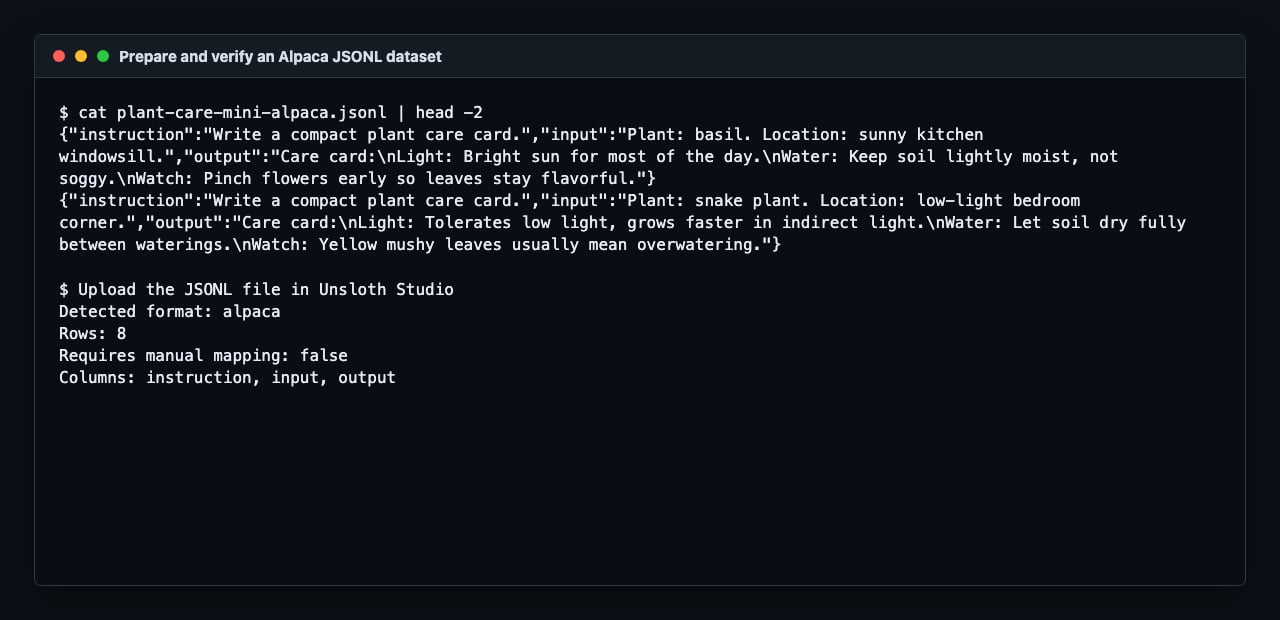 ## Upload the dataset
In Unsloth Studio:
1. Open `Train`.
2. In `Dataset`, click `Upload`.
3. Select `plant-care-mini-alpaca.jsonl`.
4. Confirm Studio detects the format as `alpaca`.
If Studio asks for manual mapping, map:
| Dataset column | Studio field |
| -------------- | ------------- |
| `instruction` | `instruction` |
| `input` | `input` |
| `output` | `output` |
## Configure training
In the `Model` section:
| Setting | Value |
| ------------------ | --------------------------------- |
| Hugging Face Model | `unsloth/gemma-4-E2B-it` |
| Method | `QLoRA (4-bit)` |
| Hugging Face Token | Leave blank for this public model |
In the `Parameters` section:
| Setting | Value |
| ---------------------- | -------------------- |
| Max Steps | `8` for the demo run |
| Context Length | `2048` |
| Learning Rate | `0.0002` |
| Batch Size | `2` |
| Gradient Accumulation | `4` |
| Optimizer | `AdamW 8-bit` |
| Gradient Checkpointing | `unsloth` |
In `LoRA Settings`:
| Setting | Value |
| --------------------------- | ------------------------------ |
| LoRA Rank | `8` |
| LoRA Alpha | `8` |
| LoRA Dropout | `0` |
| Target Modules | `all-linear` |
| Fine-tune Vision Layers | Off for this text-only dataset |
| Fine-tune Language Layers | On |
| Fine-tune Attention Modules | On |
| Fine-tune MLP Modules | On |
For a real run, increase `Max Steps` or switch to epochs after the first validation run succeeds. Keep the first run short so you can catch dataset or setup issues quickly.
## Start training
Click `Start Training`. The first run may spend a few minutes downloading model weights and initializing kernels before the step counter starts moving.
When the run completes, Studio shows the output path and enables `Compare in Chat` and `Export Model`.
Successful runs save the adapter to a path like:
```text theme={null}
~/.unsloth/studio/outputs/unsloth_gemma-4-E2B-it_
```
Keep the adapter folder and the base model name together. A LoRA adapter is not a standalone model; it is loaded alongside the base model it was trained from.
## Test the adapter
Click `Compare in Chat` after training finishes. Studio opens the base model and fine-tuned adapter side by side.
Try a prompt that matches the dataset pattern but was not copied directly from the training rows:
```text theme={null}
Write a compact plant care card.
Plant: rosemary. Location: hot balcony with afternoon sun.
```
For this setup dataset, look for the fine-tuned side to follow the `Care card`, `Light`, `Water`, and `Watch` structure. Treat this as a workflow check, not a quality benchmark. For a real adapter, expand the dataset and test with prompts that represent the task you actually need.
## Clean up
When you are done testing:
```bash theme={null}
pkill -f "unsloth studio"
exit
```
Then delete the instance from your local terminal:
```bash theme={null}
tnr delete
```
Billing stops when the instance is deleted.
## References
* [Run Unsloth Studio](/guides/unsloth-studio)
* [Unsloth Gemma 4 fine-tuning](https://unsloth.ai/docs/models/gemma-4/train)
* [Unsloth Studio installation](https://unsloth.ai/docs/get-started/install)
## Upload the dataset
In Unsloth Studio:
1. Open `Train`.
2. In `Dataset`, click `Upload`.
3. Select `plant-care-mini-alpaca.jsonl`.
4. Confirm Studio detects the format as `alpaca`.
If Studio asks for manual mapping, map:
| Dataset column | Studio field |
| -------------- | ------------- |
| `instruction` | `instruction` |
| `input` | `input` |
| `output` | `output` |
## Configure training
In the `Model` section:
| Setting | Value |
| ------------------ | --------------------------------- |
| Hugging Face Model | `unsloth/gemma-4-E2B-it` |
| Method | `QLoRA (4-bit)` |
| Hugging Face Token | Leave blank for this public model |
In the `Parameters` section:
| Setting | Value |
| ---------------------- | -------------------- |
| Max Steps | `8` for the demo run |
| Context Length | `2048` |
| Learning Rate | `0.0002` |
| Batch Size | `2` |
| Gradient Accumulation | `4` |
| Optimizer | `AdamW 8-bit` |
| Gradient Checkpointing | `unsloth` |
In `LoRA Settings`:
| Setting | Value |
| --------------------------- | ------------------------------ |
| LoRA Rank | `8` |
| LoRA Alpha | `8` |
| LoRA Dropout | `0` |
| Target Modules | `all-linear` |
| Fine-tune Vision Layers | Off for this text-only dataset |
| Fine-tune Language Layers | On |
| Fine-tune Attention Modules | On |
| Fine-tune MLP Modules | On |
For a real run, increase `Max Steps` or switch to epochs after the first validation run succeeds. Keep the first run short so you can catch dataset or setup issues quickly.
## Start training
Click `Start Training`. The first run may spend a few minutes downloading model weights and initializing kernels before the step counter starts moving.
When the run completes, Studio shows the output path and enables `Compare in Chat` and `Export Model`.
Successful runs save the adapter to a path like:
```text theme={null}
~/.unsloth/studio/outputs/unsloth_gemma-4-E2B-it_
```
Keep the adapter folder and the base model name together. A LoRA adapter is not a standalone model; it is loaded alongside the base model it was trained from.
## Test the adapter
Click `Compare in Chat` after training finishes. Studio opens the base model and fine-tuned adapter side by side.
Try a prompt that matches the dataset pattern but was not copied directly from the training rows:
```text theme={null}
Write a compact plant care card.
Plant: rosemary. Location: hot balcony with afternoon sun.
```
For this setup dataset, look for the fine-tuned side to follow the `Care card`, `Light`, `Water`, and `Watch` structure. Treat this as a workflow check, not a quality benchmark. For a real adapter, expand the dataset and test with prompts that represent the task you actually need.
## Clean up
When you are done testing:
```bash theme={null}
pkill -f "unsloth studio"
exit
```
Then delete the instance from your local terminal:
```bash theme={null}
tnr delete
```
Billing stops when the instance is deleted.
## References
* [Run Unsloth Studio](/guides/unsloth-studio)
* [Unsloth Gemma 4 fine-tuning](https://unsloth.ai/docs/models/gemma-4/train)
* [Unsloth Studio installation](https://unsloth.ai/docs/get-started/install)