> ## Documentation Index
> Fetch the complete documentation index at: https://www.thundercompute.com/docs/llms.txt
> Use this file to discover all available pages before exploring further.
# Connecting to Instances
> Connect to Thunder Compute instances via VS Code. Configure SSH settings and manage remote development sessions for low-latency coding workflows.
Editor extension
Command line
Web interface
## Before You Connect
Make sure you have:
* Installed the Thunder Compute VS Code extension
* Signed in to Thunder Compute from the extension
* Installed the [Remote - SSH](https://marketplace.visualstudio.com/items?itemName=ms-vscode-remote.remote-ssh) extension
* Created an instance and waited for it to show `RUNNING`
If your instance does not appear, click the refresh button in the Thunder Compute sidebar.
## Connect to an Instance
1. Open VS Code
2. Click the Thunder Compute lightning icon in the Activity Bar
3. If prompted, click **Login** and complete the browser sign-in
4. Under **Instances**, find the running instance
5. Click the connect button on the instance row
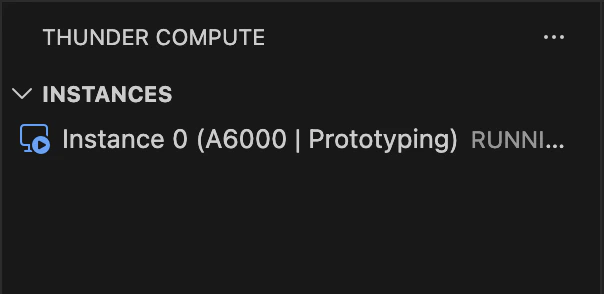 VS Code opens a new Remote SSH window for the instance. The lower-left status bar shows the active SSH target, such as `SSH: tnr-0`.
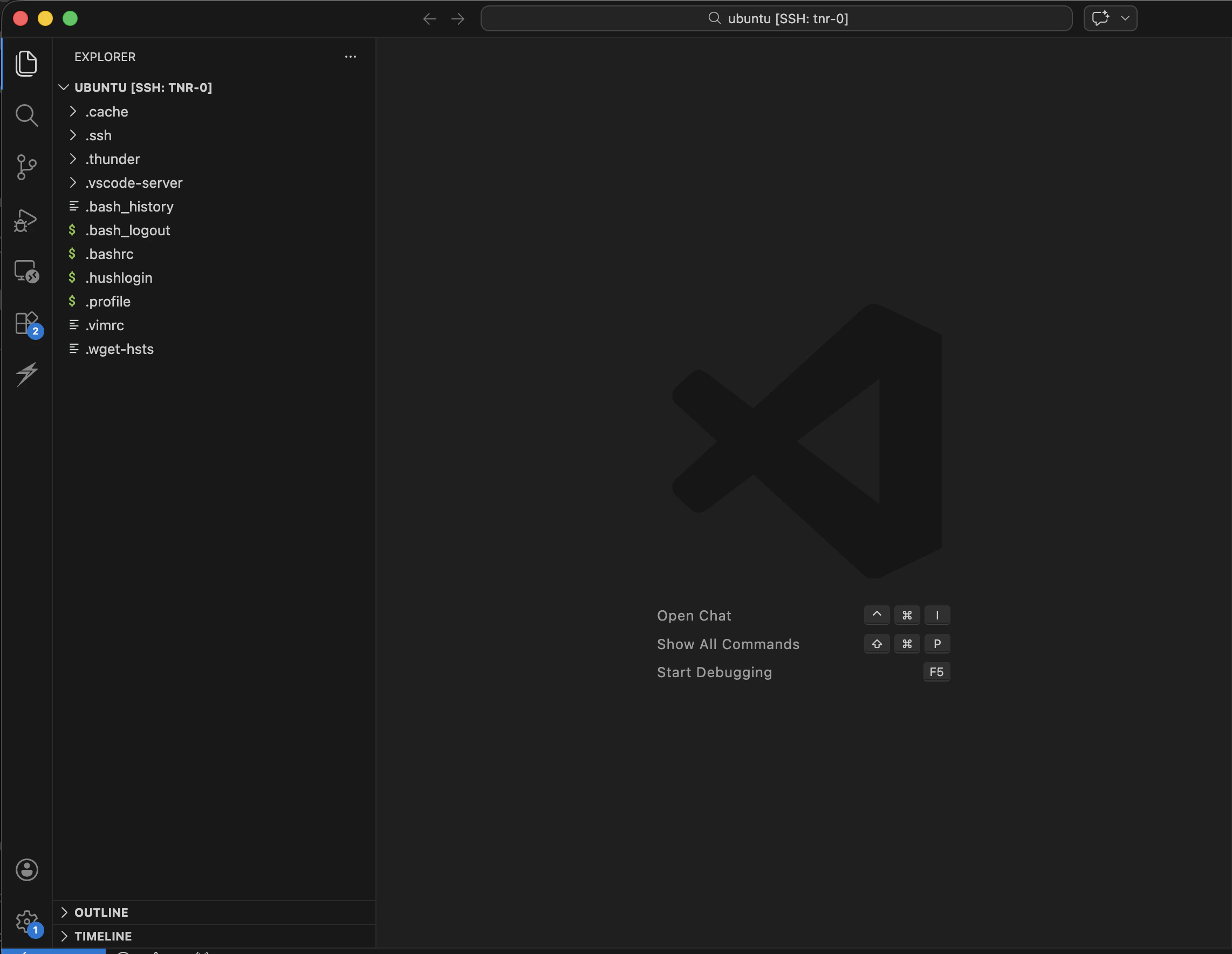 You can browse files, edit code, and open terminals in this window as if you were working locally. Commands run on the Thunder Compute instance.
On your first connection, VS Code may ask whether you trust the remote folder. Choose **Yes, I trust the authors** only for folders you expect to work in.
## Exposing Services
To expose web servers, Jupyter notebooks, or other services running on your instance, use a [Cloudflare Tunnel](/technical-specs#port-access).
## Using Standard SSH
If you prefer using your own SSH client, Thunder Compute is compatible with standard SSH tools.
Need to manage saved keys or copy a raw SSH command? See [SSH on Thunder Compute](/vscode/operations/ssh) for the manual workflow.
You can browse files, edit code, and open terminals in this window as if you were working locally. Commands run on the Thunder Compute instance.
On your first connection, VS Code may ask whether you trust the remote folder. Choose **Yes, I trust the authors** only for folders you expect to work in.
## Exposing Services
To expose web servers, Jupyter notebooks, or other services running on your instance, use a [Cloudflare Tunnel](/technical-specs#port-access).
## Using Standard SSH
If you prefer using your own SSH client, Thunder Compute is compatible with standard SSH tools.
Need to manage saved keys or copy a raw SSH command? See [SSH on Thunder Compute](/vscode/operations/ssh) for the manual workflow.