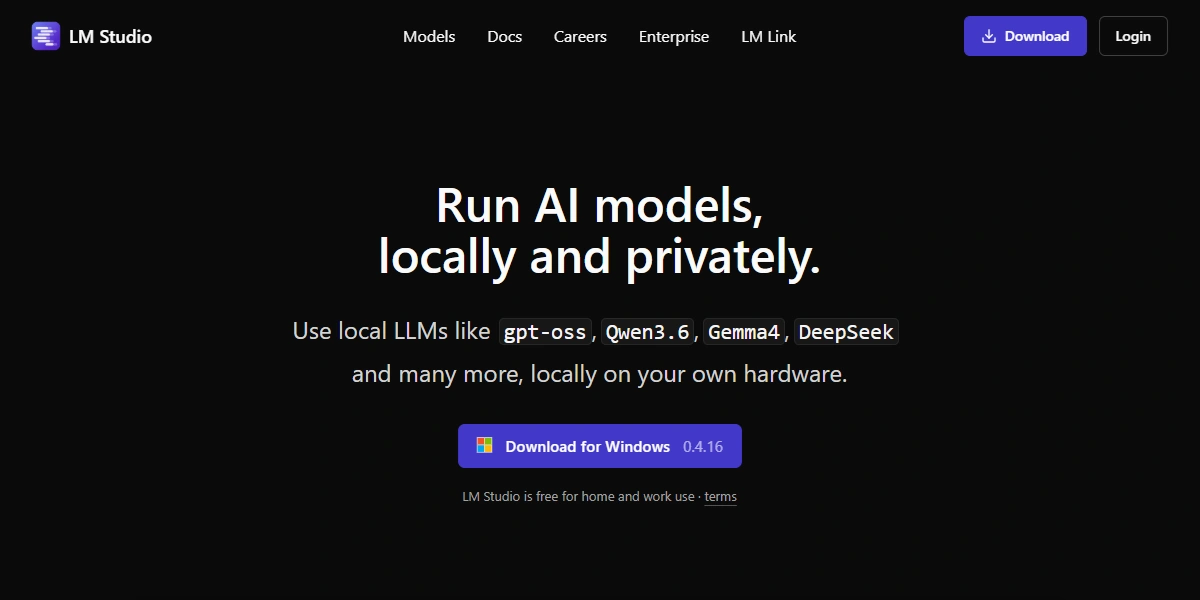
LM Studio is a desktop application for downloading, configuring, and running open-source large language models on your own machine. Developed by Element Labs, it targets developers, researchers, and privacy-minded users who want modern AI without sending data to third-party servers.
It acts as a graphical front-end for inference engines like llama.cpp and Apple's MLX framework, removing the need to use the command line. It also ships a local API server, a CLI tool (lms), and a headless daemon (llmster) for server and cloud deployments. One app covers the full workflow from model discovery to production serving. The app is free for personal and commercial use.
How LM Studio Works
When you open LM Studio, you browse a model catalog pulled directly from Hugging Face. Select a model, download it in GGUF or MLX format, and load it with a click. From there, a local inference server starts up that your chat interface, IDE plugins, and scripts can all query over HTTP.
LM Studio picks the right inference backend for your hardware automatically. Apple Silicon Macs default to MLX for maximum throughput; NVIDIA and AMD GPUs use llama.cpp with CUDA or Vulkan. CPU-only inference is supported too, though it runs noticeably slower on larger models.
System Requirements: Mac, Windows, and Linux
LM Studio runs on macOS, Windows, and Linux. The official docs recommend at least 16 GB of RAM and 4 GB of dedicated VRAM, though actual requirements depend on the model you load. On Apple Silicon, unified memory acts as both RAM and VRAM, so a 16 GB M3 or M4 Mac handles 7B models that would need a discrete 8 GB VRAM card on a PC.
On Linux, LM Studio ships as an AppImage tested primarily on Ubuntu. Windows gets a standard installer with CUDA and Vulkan support included. Both x64 and ARM64 (aarch64) architectures are supported.
Getting Started with LM Studio
How to Install LM Studio
Head to lmstudio.ai and download the installer for your OS. On macOS, drag the app into Applications. On Windows, run the .exe and follow the prompts. Linux users download the .AppImage, mark it executable with chmod +x, and launch it directly with no package manager needed.
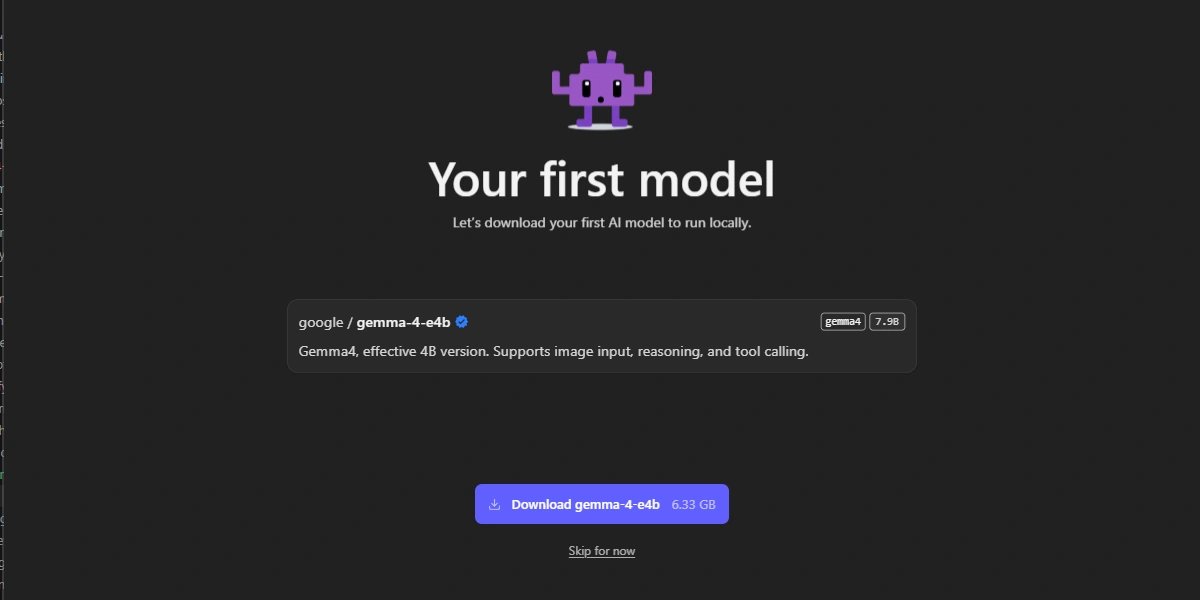
When launched, LM Studio prompts you to download a model. The app helps every step of the way with clear tooltips; no prior local LLM experience is required.
Downloading Your First Local LLM
The model browser sits in the left sidebar. Search for a model name (Llama, Qwen, Gemma, Mistral, DeepSeek) and LM Studio returns a list of variants showing file size, quantization level, and estimated VRAM requirements before you download. You know exactly what you're getting before anything starts downloading.
Click "download" and LM Studio pulls the GGUF file from Hugging Face into your local models directory. Downloads can be paused and resumed, and you can queue multiple models at once.
Choosing the Right Model and Quantization
Quantization reduces a model's memory footprint by storing weights in lower-precision formats. Q4_K_M is the most common choice, cutting VRAM use roughly in half versus FP16 with only a small quality trade-off. Q5_K_M and Q6_K give better output at the cost of more memory; Q8_0 is nearly lossless but doubles the Q4 footprint.
A useful rule of thumb: at Q4, expect about 0.5 GB of VRAM per billion parameters, plus 20-30% overhead for the KV cache. That puts a 7B model at roughly 4-5 GB, a 13B model at 8-9 GB, and a 30B model at around 18 GB. If the model exceeds available VRAM, LM Studio can overflow into system RAM, though speed drops sharply in that mode.
Running Your First Chat
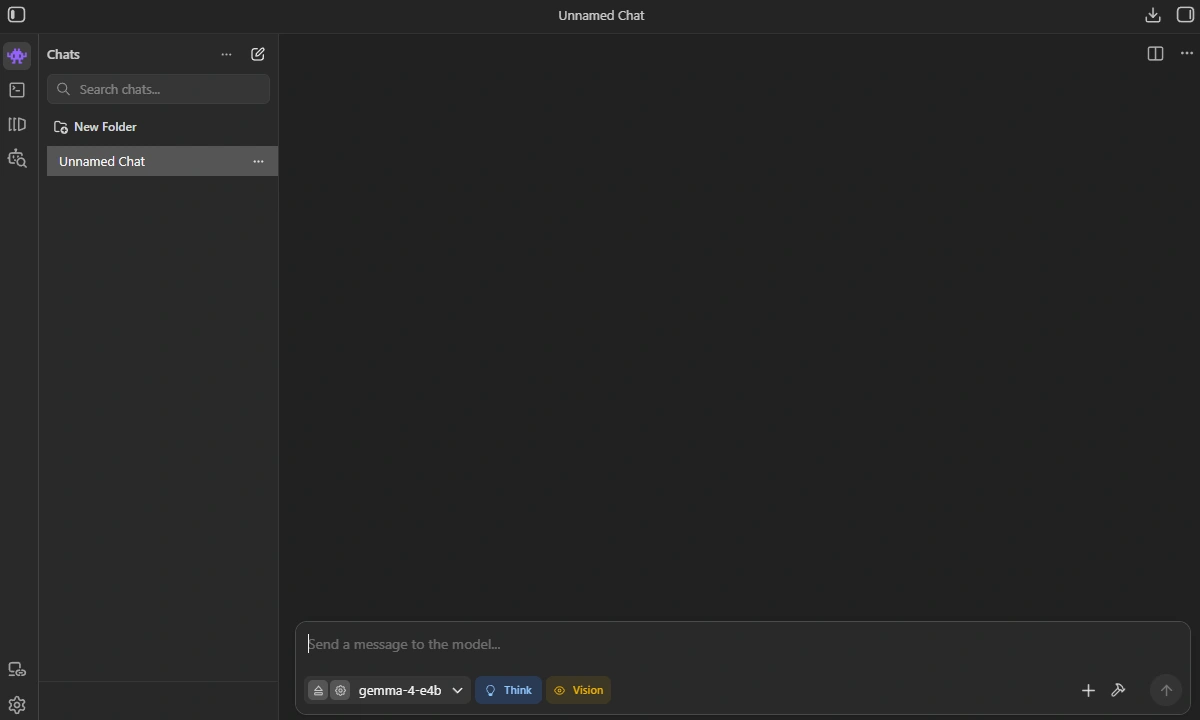
Once a model is loaded, click the chat icon in the sidebar to open a conversation. LM Studio's chat UI supports markdown, syntax-highlighted code blocks, and multi-turn history. You can adjust the system prompt, context window, and sampling parameters from the right panel without leaving the chat.
The interface shows real-time token throughput, so you can immediately tell if the model is fast enough for interactive use. 20 tokens/sec creates a smooth conversation experience, but something in the 3-8 range is acceptable if you are willing to wait. If the model runs slowly, reducing parameters or switching to a more aggressive quantization level should fix it.
Key Features of LM Studio
OpenAI-Compatible Local API for Developers
LM Studio runs a local HTTP server at http://localhost:1234 with OpenAI-compatible endpoints: /v1/chat/completions, /v1/completions, /v1/embeddings, and /v1/models. Any tool built around the OpenAI SDK (LangChain, LlamaIndex, Continue.dev) works out of the box by pointing its base URL to localhost.
The server logs incoming requests in the Developer tab, making payload debugging straightforward. LM Studio 0.4.0 added permission keys so you can restrict which clients can reach your local server, useful on shared networks.
A minimal Python example:
from openai import OpenAI
client = OpenAI(base_url="http://localhost:1234/v1", api_key="lm-studio")
response = client.chat.completions.create(
    model="local-model",
    messages=[{"role": "user", "content": "Hello!"}]
)
print(response.choices[0].message.content)
Or with curl:
curl http://localhost:1234/v1/chat/completions \
  -H "Content-Type: application/json" \
  -d '{"model": "local-model", "messages": [{"role": "user", "content": "Hello!"}]}'
Anthropic-Compatible API and Claude Code
LM Studio 0.4.1 added a native Anthropic-compatible /v1/messages endpoint at localhost:1234. This means Claude Code, Codex, and other tools that speak the Anthropic Messages API connect to LM Studio without a proxy or translation layer.
Set two environment variables to point Claude Code at your local LM Studio server:
export ANTHROPIC_BASE_URL=http://localhost:1234
export ANTHROPIC_AUTH_TOKEN=lmstudio
Then launch Claude Code as normal. LM Studio's official docs recommend at least 25K tokens of context window for Claude Code sessions, since the agent's system prompt and tool definitions consume a significant portion of context before any user content is added.
Chat with Documents Using RAG
LM Studio includes a built-in RAG (retrieval-augmented generation) system. Drag and drop PDFs, text files, or Word documents into the chat, and the app chunks, embeds, and retrieves relevant passages locally at inference time. No document content leaves your machine.
There is no external vector database to configure; the app manages its own embedding store internally. This makes LM Studio a strong choice for anyone working with sensitive materials.
LM Studio MCP Support
LM Studio 0.3.17 added Model Context Protocol (MCP) support, letting you connect local and remote MCP servers to the app and expose their tools to any loaded model. MCP servers can give models access to file systems, databases, web search, custom APIs, and more, turning a local chat interface into a capable agentic environment.
Configuration follows Cursor's mcp.json notation. Add servers by editing mcp.json directly or using the "Add to LM Studio" button where available. Connected tools appear in the MCP Servers panel in the Developer tab and can be toggled per session. Only install MCP servers from sources you trust, as some can execute code or access local files.
LM Studio Image Generation
LM Studio is a text inference platform and does not include a built-in image generation runtime like Stable Diffusion. It does support image input via vision-capable models. You can send JPEG, PNG, or WebP images through the chat or API and get text responses grounded in the visual content.
For full image generation, the typical setup pairs LM Studio with ComfyUI. LM Studio writes the prompt; ComfyUI runs the diffusion model. The two communicate over LM Studio's API, keeping the entire workflow local.
llmster: Running LM Studio Without the GUI
LM Studio 0.4.0 introduced llmster, a headless daemon that runs the LM Studio inference engine without a GUI. It supports the same API, MCP tools, and model lifecycle as the desktop app, making it suitable for Linux servers, cloud instances, CI pipelines, and Docker containers.
The lms CLI (included with the desktop app) handles model management from any terminal: downloading, loading, unloading, and checking status. You can configure llmster as a Linux startup service so it launches automatically on boot. For teams that need programmatic local inference without a desktop environment, it is the missing piece between LM Studio and a production server.
LM Studio Alternatives
LM Studio vs Ollama
Ollama and LM Studio are the two most common tools for running local LLMs, but they target different workflows. Ollama is CLI-first: pull a model with one command, expose it as an API, and forget about it. It suits developers who want a scriptable backend they rarely need to touch.
LM Studio is the GUI-first alternative, with model discovery, download management, chat, RAG, and server controls all in one app. On Apple Silicon, its MLX backend tends to outpace Ollama's GGUF path in tokens per second. For headless deployments and scripting, Ollama is often simpler. One key distinction: Ollama is open source; LM Studio's core is proprietary, though free to use commercially.
| LM Studio | Ollama | |
|---|---|---|
| Interface | Desktop GUI + CLI | CLI only |
| Model discovery | Built-in browser | Pull commands |
| Apple Silicon speed | MLX backend | GGUF (llama.cpp) |
| Headless server | llmster daemon | Native daemon |
| Open source | No (free to use) | Yes |
| MCP support | Yes (0.3.17+) | Partial |
| RAG built-in | Yes | No |
| Best for | Exploration, Mac | Scripting, servers |
AnythingLLM vs LM Studio
AnythingLLM and LM Studio operate at different layers. LM Studio is an inference runner: it loads models, serves them through an API, and provides a chat interface. AnythingLLM is an orchestration layer that delegates inference to Ollama, LM Studio, or a cloud provider, while adding multi-user workspaces, advanced RAG pipelines, and agent workflows.
If you need a clean desktop interface for running a single model, LM Studio is the sharper tool. If you need team document chat or complex agent setups, AnythingLLM is worth a look, and it can use LM Studio as its local backend. The two are not mutually exclusive.
OpenClaw and LM Studio
OpenClaw is an autonomous AI agent framework that supports LM Studio as a native model provider. Because LM Studio exposes an OpenAI-compatible API at localhost:1234, OpenClaw connects without custom adapters. Your prompts, agent memory, and tool outputs all stay on your machine.
Hardware is the main constraint. OpenClaw's agent loops use large amounts of context, and the docs recommend at least 50,000 tokens of context window for reliable behavior. That calls for 32 GB or more of unified memory on a Mac, or a GPU rig with at least 24 GB of VRAM. A quantized 8B model on 16 GB can work for lighter tasks, but expect higher error rates on complex multi-step workflows.
Performance Tips
GPU Acceleration: CUDA, Metal, and Vulkan
LM Studio detects available GPU acceleration and selects the right backend automatically:
- NVIDIA hardware uses CUDA via llama.cpp
- Apple Silicon defaults to Metal through MLX
- AMD GPUs and CUDA-less systems fall back to Vulkan
To confirm GPU acceleration is active, check the model loading panel. It shows how many layers are offloaded to the GPU versus kept in CPU memory. If only some layers are offloading, the model is likely too large for your VRAM at the current quantization.
Context Size, Temperature, and Inference
Context size is the most important parameter to tune. Larger context windows increase the VRAM needed for the KV cache, which can push a model that fits in VRAM into slow CPU overflow. For most chat use cases 4,000-8,000 tokens is plenty; only go higher if you are working with long documents or extended conversations.
Temperature controls output randomness. A value of 0 gives deterministic results, which suits code generation and factual tasks. Higher values add variety, which can help creative writing but hurts accuracy on structured tasks. A starting range of 0.6-0.8 works for most users.
Best Local LLMs to Run in LM Studio in 2026
Open-weight model quality has improved dramatically in 2026. Several models now match cloud API performance on common benchmarks while running on consumer hardware. The table below covers the top picks across hardware tiers.
| Model | Size (VRAM at Q4) | Best For | License |
|---|---|---|---|
| Llama 4 Scout | ~32 GB min (1.78-bit dynamic GGUF); ~55 GB at Q4_K_M | Best overall, multimodal | Llama 4 Community |
| Qwen 3.6-35B-A3B | ~20 GB | Coding, long context | Apache 2.0 |
| Gemma 4 26B-A4B | ~14 GB (4B active / 26B MoE) | General use, 140+ languages | Gemma Terms of Use |
| Qwen 3.5 9B | ~6 GB | 16 GB RAM laptops | Apache 2.0 |
| Gemma 4 E4B | ~3 GB | Edge devices, low VRAM | Gemma Terms of Use |
| DeepSeek R1 8B | ~5 GB | Math, reasoning tasks | MIT |
On constrained hardware, prioritize parameter count over quantization precision. The jump from a 4B to an 8B model is usually more noticeable than the jump from Q4 to Q6 at the same size. Start with the smallest model that meets your quality bar and scale up from there.
The Hardware Problem and a Cloud-Native Alternative
LM Studio can only work with the hardware beneath it. For most people, "local" means a laptop, and consumer laptops rarely have the VRAM to run models larger than 7B or 8B comfortably. A 70B model at Q4 needs roughly 40 GB of VRAM, which is more than a single RTX 4090 can provide.
For a full breakdown of which GPU fits which model size and budget, see the Thunder Compute guide to the best GPU for LLM workloads.
If you already own a powerful desktop or GPU rig, LM Studio's LM Link feature (currently in preview) lets you run inference on that remote machine from your laptop over an end-to-end encrypted connection, with the API still appearing at localhost:1234 as usual. It is a practical option for bridging the gap without cloud costs when the hardware already exists.
For teams who don't own that hardware, or who need reliable dedicated GPU access on demand, Thunder Compute is the faster path. Spin up a cloud GPU in seconds with LM Studio pre-configured, with your data staying in a dedicated instance rather than a shared inference endpoint.
Last Thoughts on LM Studio
LM Studio gives you a full local LLM stack in a single app: model browser, chat UI, RAG, MCP tools, a local API server, and headless daemon support. It is the fastest path from zero to a working local model for developers on any OS, and on Apple Silicon it leads on inference speed.
Thunder Compute closes the hardware gap to run Llama 4 Scout or a 70B DeepSeek. Starting at $0.35/hr for an RTX A6000 and $1.09/hr for an A100 80 GB.
FAQ
What Is LM Studio?
LM Studio is a free desktop application by Element Labs for running open-source large language models on your own hardware, with no cloud API or internet connection required. It includes a chat interface, an OpenAI-compatible local server, a CLI (lms), a headless daemon (llmster), built-in document RAG, and MCP support. It runs on macOS, Windows, and Linux.
Is LM Studio Safe?
LM Studio keeps all inference on your local machine. No prompts, responses, or model weights are sent to external servers during inference. Network requests only happen when browsing or downloading models from Hugging Face; after that you can run entirely offline. With MCP servers, only install from sources you trust, as some can execute code or access local files.
Is LM Studio Open Source?
The LM Studio desktop app and llmster daemon are proprietary but free for personal and commercial use. The underlying inference engines (llama.cpp and Apple's MLX) are open source. If an auditable codebase is a requirement, Ollama is the most capable open-source alternative.
What Are the Minimum System Requirements for LM Studio?
The official documentation recommends at least 16 GB of RAM and 4 GB of dedicated VRAM. On Apple Silicon Macs, unified memory acts as both RAM and VRAM, allowing a 16 GB machine to run 7B models far more efficiently than an equivalent PC configuration.
What Is LM Studio MCP Support and How Do You Configure It?
LM Studio 0.3.17 introduced Model Context Protocol (MCP) support, which connects local or remote MCP servers to expose tools like file systems, databases, and web search to your models. Configuration is handled by modifying the mcp.json file using standard Cursor notation.
What Is llmster and How Does It Help Developers?
Introduced in version 0.4.0, llmster is a headless daemon that runs the LM Studio inference engine without a graphical user interface. It enables programmatic local inference on Linux servers, Docker containers, and cloud pipelines via the lms terminal CLI.
How Does LM Studio Differ from Ollama?
LM Studio is a GUI-first app with a built-in model browser, native document RAG, visual server controls, and an MLX backend optimised for Apple Silicon. Ollama is CLI-first and fully open source, better suited for scripting and headless server deployments. For Apple Silicon performance, LM Studio's MLX backend generally wins; for server automation, Ollama is simpler.
What Are the Best Local LLMs to Run in LM Studio in September 2026?
For 24 GB+ VRAM: Llama 4 Scout (multimodal MoE, needs 32 GB minimum with dynamic GGUF) and Qwen 3.6-35B-A3B (21 GB, coding and long context). For 8-16 GB VRAM: Gemma 4 26B-A4B (14 GB, general use) and DeepSeek R1 8B (5 GB, math and reasoning).
Can I Use LM Studio with Claude Code?
Yes. LM Studio 0.4.1 added a native Anthropic-compatible /v1/messages endpoint at localhost:1234. Set ANTHROPIC_BASE_URL=http://localhost:1234 and ANTHROPIC_AUTH_TOKEN=lmstudio, then launch Claude Code normally. The official docs recommend at least 25K tokens of context window for reliable agent sessions.
What Is LM Link?
LM Link is an LM Studio feature (currently in preview) that lets you run inference on a remote machine from your laptop over an end-to-end encrypted Tailscale connection. The API still appears at localhost:1234 on your laptop, and it works with Claude Code, Codex, and OpenCode. It is useful when you already own a powerful GPU machine elsewhere on your network.