Wan 2.2 remains one of the most widely used open-weights video generation models, and ComfyUI is the go-to interface for running it with full control over every parameter. This guide covers what the model is, how to install it, what it costs to run, and how to get consistent results from text-to-video and image-to-video workflows.
Takeaways
- Wan 2.2 is free and open-weights. The model runs commercially under the Apache 2.0 license, with weights on Hugging Face.
- The 5B model runs on 6-8GB of VRAM, while the 14B model needs 24GB or more for quality 480p and 720p output.
- ComfyUI has native Wan 2.2 support, with official templates for text-to-video, image-to-video, and first-frame-to-last-frame workflows.
- An RTX A6000 (48GB) runs the 14B model at 720p without quantization, which no single consumer GPU can do.
- A single 480p clip costs about $0.02-$0.03 on Thunder Compute's RTX A6000 at $0.35/hr.
To skip setup entirely, Thunder Compute offers a one-click ComfyUI template on an RTX A6000 (48GB VRAM) at $0.35/hr.
What Is Wan 2.2?
Wan 2.2 is an open-source AI video generation model released by Alibaba on July 28, 2025. It generates short video clips from text prompts or images at a quality level that competes with commercial tools. The model is released under the Apache 2.0 license, so you can download the weights from Hugging Face and use them commercially.
What sets it apart is its Mixture-of-Experts (MoE) architecture, which meaningfully changes how the model processes video.
The MoE Architecture
Mixture of Experts is a machine learning technique where a neural network is broken up into specialized sub-networks. A gating network chooses which expert sub-networks to activate for each input, increasing model capacity without proportionally increasing compute requirements.
This architecture uses specialized sub-networks for different stages of the denoising process, rather than a single monolithic transformer for every step. The result is better motion coherence, sharper detail, and more reliable instruction following, without proportionally higher compute costs.
How Wan Generates Video
Like Stable Diffusion, Wan 2.2 is a diffusion model. It starts from random noise and progressively denoises toward a coherent video guided by your text or image input.
Unlike image generation, which only manages a single frame (space), video generation must handle that layout while simultaneously calculating how every pixel moves over the duration of the clip (time). This means a core challenge in video synthesis is temporal consistency.
Wan 2.2 addresses this difficulty at the diffusion level with two expert models:
- A high-noise expert for early denoising steps, establishing overall layout and motion structure.
- A low-noise expert that takes over for later steps to refine texture and fine details.
The handoff is determined by the signal-to-noise ratio at each timestep. This two-stage specialization is why Wan 2.2 produces visually cleaner results than a standard single-network approach.
Wan 2.2 vs. Wan 2.1: What Changed
Wan 2.1 launched in February 2025 and quickly became the open-source benchmark for AI video. It used a dense diffusion transformer, with a single large network handling every denoising step.
Despite its high quality, the model had clear weaknesses:
- Motion artifacts in complex scenes
- Inconsistent character appearance
- Poor responsiveness to camera instruction prompts
Wan 2.2 replaces the dense transformer with the MoE architecture and expands the training data, adding 65.6% more images and 83.2% more videos compared to Wan 2.1. The result is better motion coherence, more consistent character appearance across frames, and stronger camera prompt responsiveness.
What About Wan 2.5 and Wan 2.6?
Wan 2.5 was released by Alibaba in September 2025. It adds native audio-visual generation (synchronized sound and video in one pass), 1080p output at 24fps, and clips up to 10 seconds long. However, Wan 2.5 weights are not publicly available for local deployment. Access is through managed API endpoints only.
Wan 2.6 launched in December 2025 with multi-shot storytelling, reference-to-video, and native synchronized audio. It is distributed as a commercial API release rather than downloadable weights, so it cannot be run locally in ComfyUI the way Wan 2.2 can, and Alibaba has previewed newer versions since. This guide stays focused on Wan 2.2 for users who want a fully open-weights model they can run and modify locally.
NoteFor native synchronized audio, Lightricks' LTX 2.5 is an open-weights video model that generates video and matching sound in a single pass.
What Wan 2.2 Can Do: Video Generation Modes
Text-to-Video
Text-to-video is the most direct way to use Wan 2.2. You write a prompt, set resolution and frame count, and the model generates a video from scratch. T2V is available in both model variants:
- 14B delivers higher motion fidelity and follows complex prompts more accurately
- 5B variant runs on modest hardware and is a solid starting point
Prompt structure strongly affects output, but visual reliability also depends on the checkpoint, seed, resolution, and workflow settings.
Image-to-Video
Image-to-video takes a static image as input and animates it into a short clip. The model uses the image as the first frame and generates coherent motion from there. A text prompt can still guide the type of motion, such as a camera pan or character movement.
First Frame to Last Frame
First-frame-to-last-frame (FLF2V) lets you provide both the opening and closing frames. The model generates the motion that connects them, treating both images as fixed ground truths inside the diffusion process. FLF2V works well for transitions, morphing effects, and controlled transformation sequences.
Speech-to-Video
Speech-to-video (S2V) takes a static image and an audio clip to generate a video of the character speaking, singing, or performing in sync with the audio. S2V is the most relevant mode for digital human and talking-head applications.
It supports real people, cartoons, digital humans, and animals, in portrait, half-body, and full-body formats. Text prompts can also control background and movement.
Wan 2.2 VRAM Requirements
VRAM by Model Variant: 5B vs. 14B
| Variant | Parameters | Precision | Min VRAM (480p) | Recommended VRAM (720p) |
|---|---|---|---|---|
| TI2V-5B | 5B (active) | FP16 | 8GB | 12GB |
| TI2V-5B | 5B (active) | FP8 | 6GB | 8GB |
| T2V / I2V 14B | 14B (active) | FP8 | 25GB | 40GB+ |
| T2V / I2V 14B | 14B (active) | GGUF Q5 | 21GB | 25GB |
| T2V / I2V 14B | 14B (active) | GGUF Q3 | 15GB | 21GB |
| All figures include the UMT5-XXL text encoder loaded in VRAM (~9GB), which eliminates encode latency. | ||||
The RTX A6000's 48GB makes it the ideal single-GPU option for Wan 2.2 14B. It runs the 14B model at 720p with FP8 precision without quantization, which is otherwise not achievable on a single consumer GPU. On a 24GB RTX 4090, you can run the 14B variant at 480p with FP8 and GGUF Q5 at 720p.
Quantization and Offloading Options for Low-VRAM Setups
FP8 quantization reduces the model's memory footprint by 20-40% compared to BF16/FP16, at a minor quality cost. For the 14B model, fitting onto a 24GB GPU often depends on whether FP8 weights are available. The official Wan 2.2 release includes FP8-scaled checkpoint files for this reason.
GGUF quantization goes further, pushing the 14B model onto GPUs with as little as 6GB of VRAM via CPU offloading. Q5_K_M and Q6 variants offer the best quality-to-size balance; Q3_K is the minimum viable option.
Keep in mind that more offloading means slower generation, so GGUF on a 6GB GPU is a learning tool, not a production setup.
What Does Wan 2.2 Cost to Run?
The model weights are free to download from Hugging Face under the Apache 2.0 license. Running costs depend on the GPU you use.
On Thunder Compute's RTX A6000 at $0.35/hr, a typical 81-frame video at 480p (832x480) using the 14B FP8 model takes about 3-5 minutes to generate, costing roughly $0.02-$0.03 per video. A 720p video at 81 frames takes longer (8-15 minutes on the A6000) and costs about $0.05-$0.09.
For high-volume production, a batch of 100 videos at 480p would cost about $2-$3 on the A6000. If generation speed matters more than cost, the A100 at $1.09/hr reduces generation time by roughly 2-3x.
How to Install Wan 2.2 in ComfyUI
Updating ComfyUI First
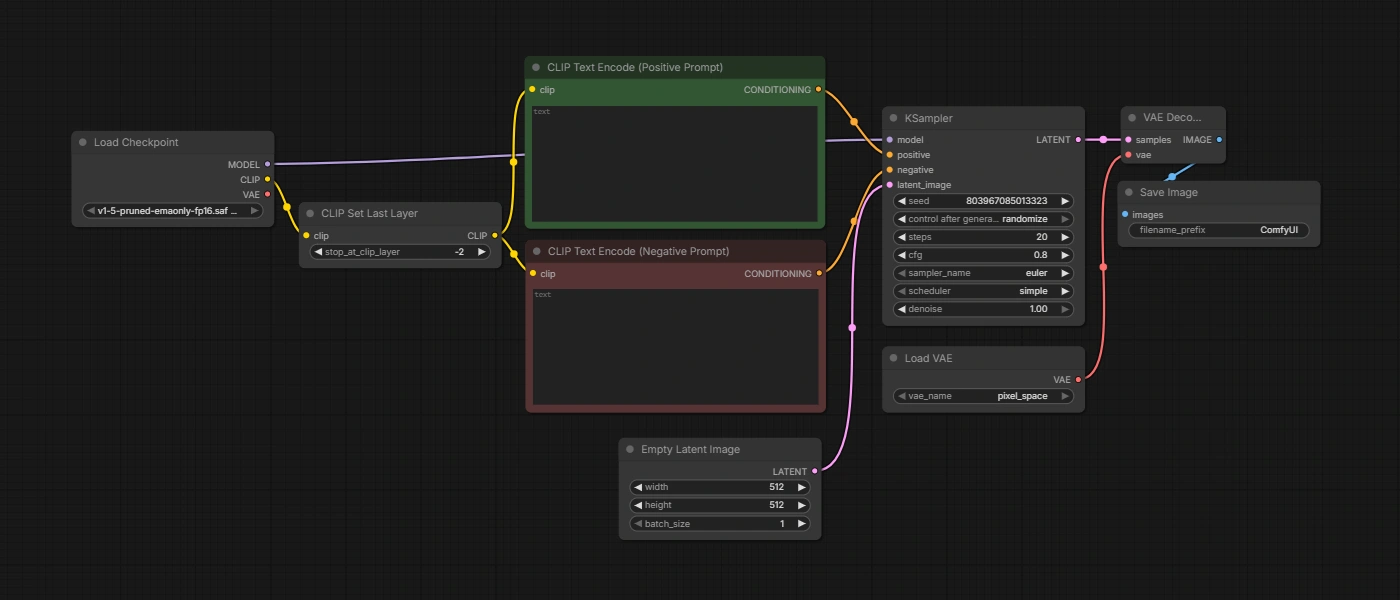
Update ComfyUI before installing any Wan 2.2 model files. Wan 2.2 received day-0 native support at launch, but the workflow templates require a recent build (version 0.3.46 or later). Open ComfyUI Manager and click Update ComfyUI before proceeding.
Downloading the Model Files
You need three categories of files: the text encoder, the VAE, and the diffusion model checkpoints.
- Text encoder:
umt5_xxl_fp8_e4m3fn_scaled.safetensors - VAE (14B models):
wan_2.1_vae.safetensors - VAE (5B model):
wan2.2_vae.safetensors - 5B diffusion model:
wan2.2_ti2v_5B_fp16.safetensors - 14B T2V: Two files,
wan2.2_t2v_high_noise_14B_fp8_scaled.safetensorsandwan2.2_t2v_low_noise_14B_fp8_scaled.safetensors - 14B I2V: Two files with
i2vin the filename, same pattern
Loading the Official Workflow
ComfyUI includes official workflow templates for TI2V-5B, T2V 14B, I2V 14B, and FLF2V. Access them from the workflow templates panel in the interface, or download Wan 2.2 workflow JSON files and drag them directly onto the canvas. The templates handle all node connections automatically, including the dual model loader required for the 14B MoE architecture.
Read nextFor a simpler interface, Forge Neo is a traditional web UI alternative that works with the same models.
How to Use Wan 2.2 in ComfyUI
Configuring Your First Text-to-Video Generation
Load the Wan 2.2 T2V workflow template and confirm that both diffusion model nodes (high-noise and low-noise) have loaded their checkpoint files. In the CLIP Text Encode node, write your prompt and set resolution and frame count before queuing. A 480p output (832x480) at 81 frames is a practical starting point that balances quality, speed, and VRAM usage.
Prompting Tips for Wan 2.2 Video
Prompt structure affects output quality, with a practical starting length of 80-120 words. The following framework produces consistent results.
Lead with the camera framing and subject. "A close-up shot of a woman walking through a neon-lit city street at night" gives the model an immediate spatial and temporal anchor. Follow with motion description: "She moves slowly, rain falling around her, reflections shimmering on the wet pavement." End with atmosphere and visual style: "Cinematic color grading, teal and orange tones, shallow depth of field, 24fps film look."
For negative prompts, listing common artifacts helps the model avoid them: "blurry motion, flickering, inconsistent lighting, morphing faces, watermark."
Camera motion terms that work with Wan 2.2: "slow dolly in", "rack focus from foreground to background", "orbital camera", "static shot", "handheld camera", "pan left". These terms from cinematography are in the training data and produce more reliable camera movement than abstract descriptions.
Avoid contradictory instructions. "Fast action scene with slow-motion detail" introduces conflicting signals. Pick one and describe it precisely.
Running Image-to-Video
Load the I2V workflow template and connect your source image to the Load Image node. Keep your prompt focused on the motion you want rather than re-describing the image content. The model already sees the image directly, so a prompt like "The person turns their head slowly to the right" outperforms one that re-describes the scene.
For FLF2V, connect two Load Image nodes: one for the first frame and one for the last. The model generates the motion between them. FLF2V works best for smooth, continuous transformations; complex multi-step actions across distant keyframes tend to produce more conservative interpolations.
Using Wan 2.2 with ControlNet in ComfyUI
Wan 2.2 Fun Control is a ControlNet-enabled variant that lets you drive motion from a reference video or image sequence. It supports Canny edge, depth maps, OpenPose, and MLSD geometric edge signals. To use it, install the VideoX-Fun custom node via ComfyUI Manager, then use the WanFunControl to Video node in your workflow.
ControlNet conditioning locks the motion structure to your reference while the prompt and image handle appearance. It works well for transferring a performance to a new character or constraining motion to a specific path.
Read nextFor other options, see how Wan 2.2 stacks up against the other best open-source AI video generation models.
How to Run Wan 2.2 on a Cloud GPU
Thunder Compute offers a one-click ComfyUI template starting at $0.35/hr for an RTX A6000 with 48GB of VRAM. The A6000's 48GB is the minimum GPU for running the 14B model at 720p without quantization. No local environment setup, no driver configuration, and no waiting for large model downloads on a slow home connection.
To get started: install the CLI, run tnr create --template comfy-ui and choose your instance specs, then connect with tnr connect 0 and launch with start comfyui.
Model downloads from Hugging Face on Thunder instances run at data center speeds, typically downloading the full 14B model set in under 10 minutes.
Last Thoughts on Wan 2.2 ComfyUI
Wan 2.2 brings commercial-grade AI video generation to open weights under Apache 2.0. The 5B model runs on 8GB cards, while the 14B model delivers the best motion quality on 24GB+. A cloud GPU like the RTX A6000 covers most variants at 720p, so you can start generating without buying hardware.
Use the ComfyUI template and start generating AI video with Wan 2.2 from $0.35/hr.
FAQ
What are the Stable Diffusion hardware requirements for 2026?
The minimum for basic generation is an NVIDIA GPU with 4GB of VRAM running SD 1.5. For modern models, the practical floor is 12-16GB. A100 or H100 cloud instances suit professional unquantized generation, LoRA training, and production batch workflows.
Can I run Stable Diffusion on 8GB VRAM?
Yes. SD 1.5 and SDXL both run reliably at 8GB with proper configurations.
Can I run Stable Diffusion without a GPU?
CPU-only execution is possible using backends like OpenVINO, but generation typically takes 5-15 minutes per image, making iterative work impractical. A cloud GPU is the more viable alternative for CPU-only users.
What is the difference between Stable Diffusion and Flux?
Stable Diffusion uses a latent diffusion architecture, while Flux uses a rectified flow transformer. Flux produces higher-quality outputs with stronger prompt adherence but needs more VRAM and has fewer community fine-tunes. Both run in the same frontends and use the same .safetensors format.
How long does it take to install Stable Diffusion locally?
Local installation takes under 30 minutes once Python and GPU drivers are in place. The main time cost is downloading model checkpoints, which range from 4-41GB depending on the model.
How do I fix CUDA out-of-memory errors in Stable Diffusion?
Reduce the output resolution first, then use the --lowvram flag if errors persist. Switching from FP16 to FP8 cuts VRAM usage by 40-50%. For 6-8GB cards, GGUF-quantized models bring larger models within reach.