
Ollama is one of the most compelling solutions for running AI models locally. You can implement it to stop cloud AI APIs from draining your budget, and run powerful models without handing over your data to third parties.
This guide will break down everything you need to know to get started, and the best way to run Ollama workflows on a dedicated GPU cloud for only $0.35/hour.
Takeaways
<ul><li>Ollama lets you run powerful AI models locally without privacy concerns.</li><li>You can deploy models like DeepSeek and Llama in minutes with no ML expertise.</li><li>Local deployment eliminates API fees and keeps sensitive data on your infrastructure.</li><li>Thunder Compute provides dedicated GPU resources to grow past hardware limits.</li><li>Run models for everything from code completion to enterprise chatbots.</li></ul>
What is Ollama

Ollama is an open-source framework designed to let users run LLMs locally. It packages model weights, configurations, and datasets into a unified "Modelfile", reducing setup to running a single command.
In other words, it lets you download and run AI models on your own machine, without relying on cloud-hosted services. This makes it a powerful alternative to cloud-based AI services for users who value data privacy, cost control, and offline functionality.
Unlike proprietary cloud services, Ollama gives you complete control over your AI models and data. This is a fundamental shift toward democratized AI, putting powerful language models directly in the hands of developers.
What sets Ollama apart is its focus on simplicity. You don't need extensive machine learning expertise to get started. The installation process is straightforward, and within minutes, you can have a capable LLM running on your laptop.
How Ollama Works
Ollama creates an isolated environment to run LLMs locally on your system, which prevents conflicts with other installed software. This environment includes all necessary components for deploying AI models.
Setting up Ollama
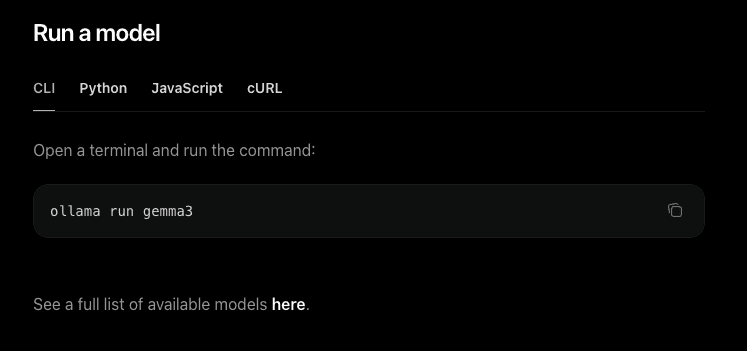
The process is remarkably straightforward. First, you pull models from the Ollama library using simple commands. Then, you run these models as-is or adjust parameters to customize them for specific tasks.
These are the basic steps:
<ol><li><a href="https://ollama.com/download" rel="noopener" target="_blank">Download the installer</a> from the official Ollama website.</li><li>Run the installer and open your terminal.</li><li><strong>Run a Model:</strong> Type the following command: <code>ollama run llama3</code></li></ol>
After the setup, you can interact with the models by entering prompts, and they'll generate responses just like ChatGPT or Claude.
The Significance of Quantization
Quantization: process of reducing the numerical precision of a model’s weights and activations. Making models smaller and more memory-efficient, with a small trade-off in accuracy.
One of the standout features of Ollama is its use of quantization to optimize model performance. Quantization reduces the computational load, allowing these models to run efficiently on consumer-grade laptops and desktops. This is no small feat, considering the size and complexity of LLMs.
Model compression techniques maintain most of the original model's performance while dramatically reducing memory requirements. Models requiring lots of VRAM can often be compressed to run on just 8GB.
Ollama also handles all the technical complexity behind the scenes. You don't need to worry about CUDA installations, dependency management, or model optimization. The tool manages everything from model loading to memory allocation automatically.
Ollama System Requirements
The system requirements for running Ollama vary greatly based on the model.
Model parameters
Parameters: numerical values that the model has learned during its training process.
Usually, the number in a model’s name (like 7B, 13B, or 70B) represents how many parameters the model contains. The more parameters in a model, the more nuanced its responses generally are.
When a model runs, all parameters must be loaded into your VRAM or RAM so the processor can access them instantly.
A rule of thumb for estimating memory requirements for 4-bit quantization (the standard compression used by Ollama): For every billion parameters, you need around 1.2 GB of VRAM/RAM.
Can I use Ollama without a GPU?
The short answer is yes. Ollama supports CPU-only execution. However, be prepared for significant wait times. A CPU might only produce a few words per second, making long-form content generation or complex coding tasks frustratingly slow.
Why VRAM is King for AI
While you can run Ollama on system RAM (CPU mode), it is significantly slower. System RAM typically transfers data at 20–70 GB/s, whereas VRAM moves data at 350-4800 GB/s.
If your model size exceeds your available VRAM, Ollama will "offload" the remaining layers to your system RAM. This prevents a crash, but you will notice a massive drop in tokens-per-second (the speed at which text appears). To keep things snappy, always aim for some VRAM overhead.
Why Run Ollama in the Cloud?
While local execution is great for small models, professional-grade performance requires serious hardware. If you don't have $30,000 for an NVIDIA H100 or even $12,000 for a dedicated RTX A6000, the cloud is your best friend.
Thunder Compute provides a simple way to run Ollama using pre-configured templates. This allows you to access enterprise-grade GPUs like the NVIDIA A100 or NVIDIA H100 for a fraction of the cost of buying hardware.
Available Models on Ollama
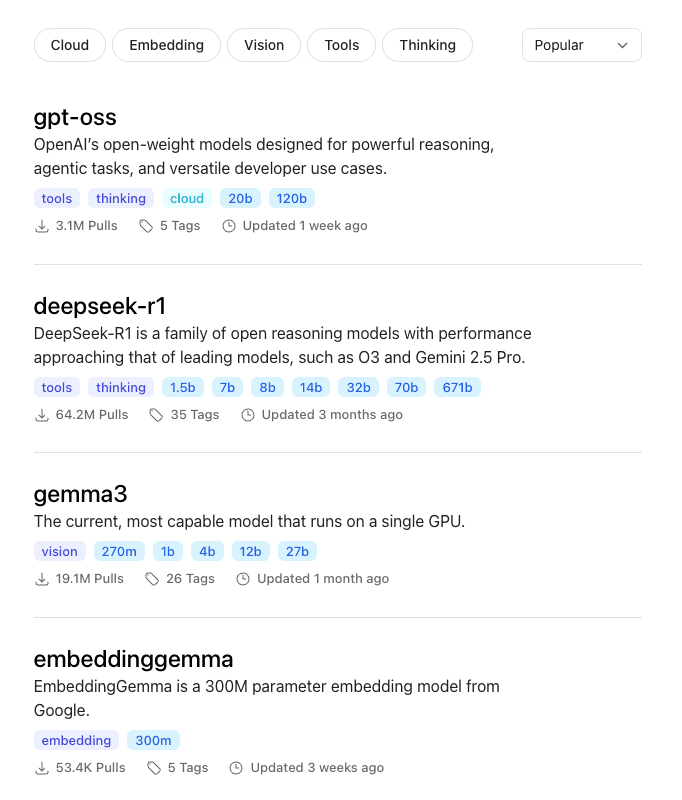
Ollama supports a wide range of model families, from lightweight assistants to powerful reasoning LLMs. Here are some of the most popular options:
These model families cover most use cases: lightweight models for simple tasks, mid-range for versatility, and larger models for advanced reasoning or coding.
When workloads exceed what local machines can handle, Thunder Compute's on-demand instances (A100s, H100s, etc.) let you scale seamlessly without losing Ollama's privacy and control benefits.
Use Cases and Applications
Ollama serves diverse use cases across different industries and user types.
Development: Prototyping AI applications becomes much more accessible when you can forget API costs or rate limits. Developers use Ollama for code completion, programming assistance, document analysis, and research with proprietary datasets requiring privacy.
Business Applications: Companies in controlled industries particularly benefit from Ollama's local deployment model. Customer service chatbots for sensitive industries, internal knowledge base querying, content generation for marketing teams, and legal document analysis are possible without compromising data.
Education: Institutions love Ollama because it eliminates ongoing costs while providing reliable access to AI. Removing cloud costs from teaching AI concepts, student projects, and academic research.
One of the most compelling reasons to execute models locally is the control it provides over sensitive data. Many industries are subject to strict data privacy regulations, making cloud solutions risky.
Ollama makes sure that the entire process happens locally, avoiding the compliance issues tied to third-party servers.
Thunder Compute: Scaling Your Ollama Workflows
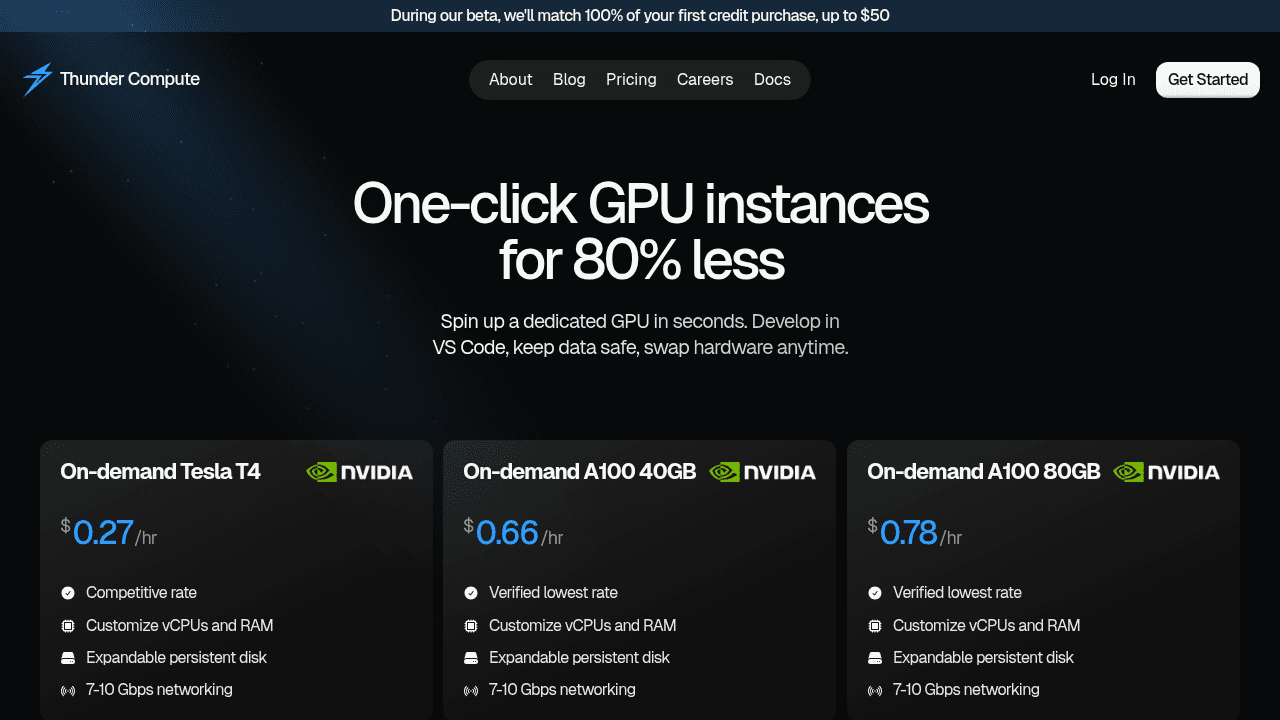
While Ollama excels at making AI models accessible on local hardware, many users eventually encounter limitations with their local setup. Whether it's insufficient GPU memory for larger models, inconsistent performance, or the need for team collaboration.
Thunder Compute bridges the gap between local development and enterprise-scale AI deployment. Our on-demand GPU instances provide the perfect environment for running Ollama workloads that have outgrown local hardware.
With support for high-end GPUs like A100s and H100s, persistent storage, and VS Code integration, developers can scale their Ollama projects while maintaining the control and flexibility they value. You get the same privacy benefits of local deployment with the performance of enterprise hardware.
The transition from local Ollama development to cloud-based scaling is smooth. You can develop locally, then deploy to Thunder Compute instances when you need more power.
Step-by-Step: Running Ollama on Thunder Compute
Thunder Compute simplifies the process by offering an Ollama template.
Step 1: Create a GPU Instance
Create a Thunder Compute Instance with the following configuration:
<ul><li><strong>Instance mode:</strong> Prototyping</li><li><strong>GPU:</strong> NVIDIA RTX A6000*</li><li><strong>Size:</strong> 4vCPUs (32GB RAM)*</li><li><strong>Template:</strong> Ollama</li><li><strong>Disk:</strong> 100GB</li></ul>
*This is just a starting point, consider the model you want to run and adjust specs accordingly.
This environment comes pre-loaded with Ubuntu 22.04, NVIDIA Drivers, and the Ollama binary.
Step 2: Connect
Once your instance is live, connect using VSCode, Cursor or your operating system's CLI.
Step 3: Start Ollama
Once the connection is set up, run the command start-ollama to initialize Open WebUI. This will return a link to access the platform.
Step 4: Add a model
To make installation fast, this template has no models, you must install them yourself.
<ul><li>Head over to the <a href="https://ollama.com/search" rel="noopener" target="_blank">Ollama Models</a> page.</li><li>Select one of the models.</li><li>Go back to Open WebUI.</li><li>Click <strong>Select a model</strong>.</li><li>Type the name of the model.</li></ul>
The download process may take some time depending on model size.
Step 5: Start chatting!
Your model is now live. You’re no longer limited by your laptop's cooling fans or your RAM's patience.
Fire off a complex prompt, ask it to write a Python script, or let it brainstorm your next big project.
Final thoughts on running Ollama locally
Ollama puts powerful AI tools directly on your machine without the ongoing costs or privacy concerns of cloud services. Whether you're building prototypes or production applications, starting locally gives you complete control over your data and models.
When your projects outgrow local hardware limitations, Thunder Compute provides the dedicated GPU resources you need while maintaining that same level of control.
FAQ
What hardware do I need to run Ollama effectively?
Ollama can run on consumer-grade laptops with 8GB of RAM, but performs best with dedicated NVIDIA or AMD GPUs. For larger models requiring substantial GPU memory, you may need high-end hardware or cloud GPU instances to get smooth performance.
How does Ollama compare to ChatGPT?
Ollama runs entirely on your local machine, providing complete data privacy and no ongoing costs, while cloud services require internet connectivity and charge per use. However, cloud services typically offer more powerful models and don't require local hardware setup.
Can I use Ollama for commercial applications?
Yes, Ollama can be used for commercial purposes without licensing fees. This makes it particularly attractive for businesses that need AI features while maintaining data privacy and controlling costs.
When should I consider moving from local Ollama to cloud infrastructure?
Consider cloud infrastructure when your local hardware can't handle larger models, you need consistent performance for production workloads, or your team requires collaborative access to AI resources that exceed what local machines can do.
Can I use Ollama without a GPU?
Yes, Ollama supports CPU-only execution, but it is significantly slower than running on a GPU.
Where does Ollama store models?
On Linux, models are stored in /usr/share/ollama/.ollama/models. On Mac, they are in ~/.ollama/models, and on Windows in C:\Users\<username>\.ollama\models.