Documentation Index

Fetch the complete documentation index at: https://www.thundercompute.com/docs/llms.txt

Use this file to discover all available pages before exploring further.

Use Thunder Compute from your own OpenClaw instance to discover GPUs, launch GPU instances, run commands, create snapshots, tear instances down, and report cost from chat.
Public beta This integration creates real Thunder Compute resources. Start with the smoke test below, confirm teardown, and check cost reporting before using it for longer workloads.

What You Install

The beta integration has two parts:
  • Thunder Compute skill: teaches the agent how to work with Thunder Compute safely.
  • Thunder Compute plugin bridge: exposes native OpenClaw tc_* tools that call the Thunder Compute MCP server.
The plugin handles execution and OAuth. The skill handles behavior: discovery first when needed, wait for readiness, run the requested command, tear down by default, and report cost.

What You Can Ask For

After setup, you can ask OpenClaw to:
  • list live GPU availability
  • compare GPU pricing
  • list available templates
  • spin up an A100 or H100
  • run nvidia-smi or your own shell command
  • create a snapshot when you ask for one
  • delete the instance
  • report the current invoice impact
Example:
Spin up an A100, wait until it is ready, run `nvidia-smi`, then tear it down and tell me the cost.

Prerequisites

Before you begin, make sure you have:
  • OpenClaw installed and working
  • a model provider configured in OpenClaw
  • Node.js and npm available
  • a Thunder Compute account
  • browser access for Thunder Compute OAuth
  • the Thunder Compute OpenClaw beta plugin bundle
Thunder Compute’s own docs describe the same underlying instance concepts used by this OpenClaw integration: instance mode, GPU type, GPU count, vCPU count, disk size, and template. The OpenClaw plugin exposes those concepts through chat tools instead of the VS Code extension or tnr CLI. Recommended OpenClaw version:
OpenClaw 2026.4.15 or newer
Minimum plugin API compatibility declared by this beta plugin:
OpenClaw plugin API >= 2026.3.24-beta.2
Gateway >= 2026.3.24-beta.2

Install The Plugin

Clone the official Thunder Compute OpenClaw plugin repository, then enter the plugin directory:
git clone https://github.com/Thunder-Compute/thunder-openclaw-plugin.git
cd thunder-openclaw-plugin
The repository contains:
openclaw.plugin.json
package.json
package-lock.json
index.ts
README.md
skills/thunder-compute/SKILL.md
Do not include local install artifacts or user secrets in the hosted bundle:
node_modules/
auth.json
pending-auth.json
.DS_Store
Install the package from the directory that contains openclaw.plugin.json, package.json, and index.ts.
npm install
openclaw plugins install .
If you are upgrading an earlier beta copy, pull the latest repository copy, uninstall the old plugin, then reinstall:
cd thunder-openclaw-plugin
git pull
npm install
openclaw plugins uninstall thunder-compute
openclaw plugins install .
Enable the plugin and point it at the Thunder Compute MCP endpoint:
openclaw config set plugins.entries.thunder-compute.enabled true --strict-json
openclaw config set plugins.entries.thunder-compute.config.endpoint "https://api.thundercompute.com:8443/mcp"
openclaw config set tools.alsoAllow '["thunder-compute"]' --strict-json
openclaw gateway restart
Important Use tools.alsoAllow, not tools.allow. tools.alsoAllow adds Thunder Compute tools without replacing your existing tool configuration.

Install Or Verify The Skill

The beta plugin bundle includes the Thunder Compute skill under:
skills/thunder-compute/SKILL.md
If your OpenClaw installation does not automatically load the bundled skill, copy it into your workspace skills folder:
mkdir -p ~/.openclaw/workspace/skills/thunder-compute
cp -R skills/thunder-compute/* ~/.openclaw/workspace/skills/thunder-compute/
The installed skill should exist at:
~/.openclaw/workspace/skills/thunder-compute/SKILL.md
The hosted skill lives inside the same repository at skills/thunder-compute/SKILL.md. That gives users one clone that includes both the executable plugin and the behavior instructions.

Verify The Plugin Loaded

Run:
openclaw plugins inspect thunder-compute
You should see the plugin loaded with Thunder Compute tools such as:
  • tc_auth_status
  • tc_auth_begin
  • tc_auth_complete
  • tc_auth_clear
  • tc_list_available_tools
  • tc_get_specs
  • tc_get_availability
  • tc_get_pricing
  • tc_list_templates
  • tc_list_instances
  • tc_create_instance
  • tc_run_command
  • tc_delete_instance
  • tc_create_snapshot
  • tc_get_upcoming_invoice
Start a new OpenClaw TUI session:
openclaw tui --session thunder-compute-beta --deliver
Inside the session, run:
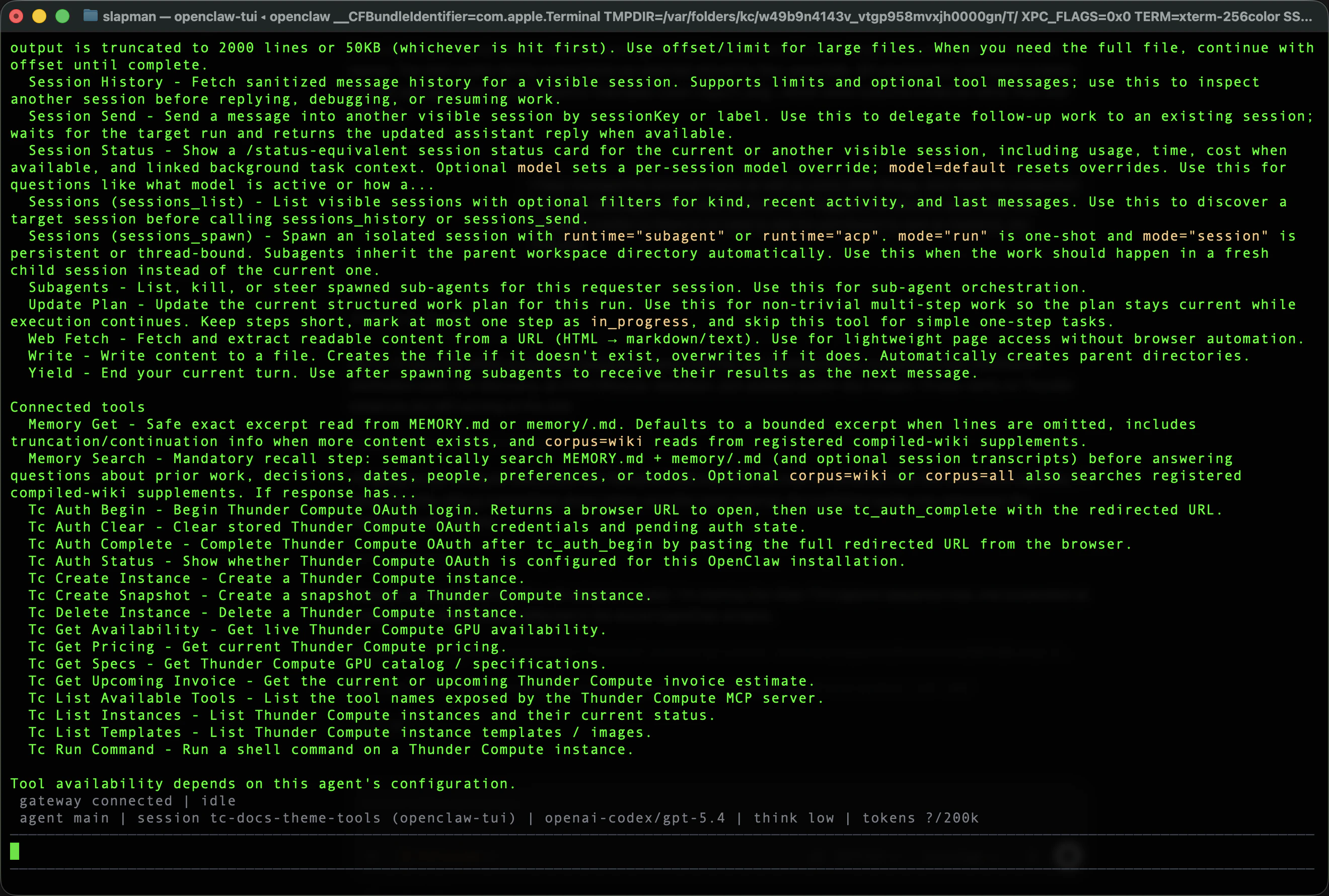
/tools verbose
You should see the Thunder Compute tools listed. OpenClaw tools verbose showing Thunder Compute tools

Authenticate With Thunder Compute

Thunder Compute uses browser-based OAuth. You do not need to paste a static API key into the skill. In OpenClaw, ask:
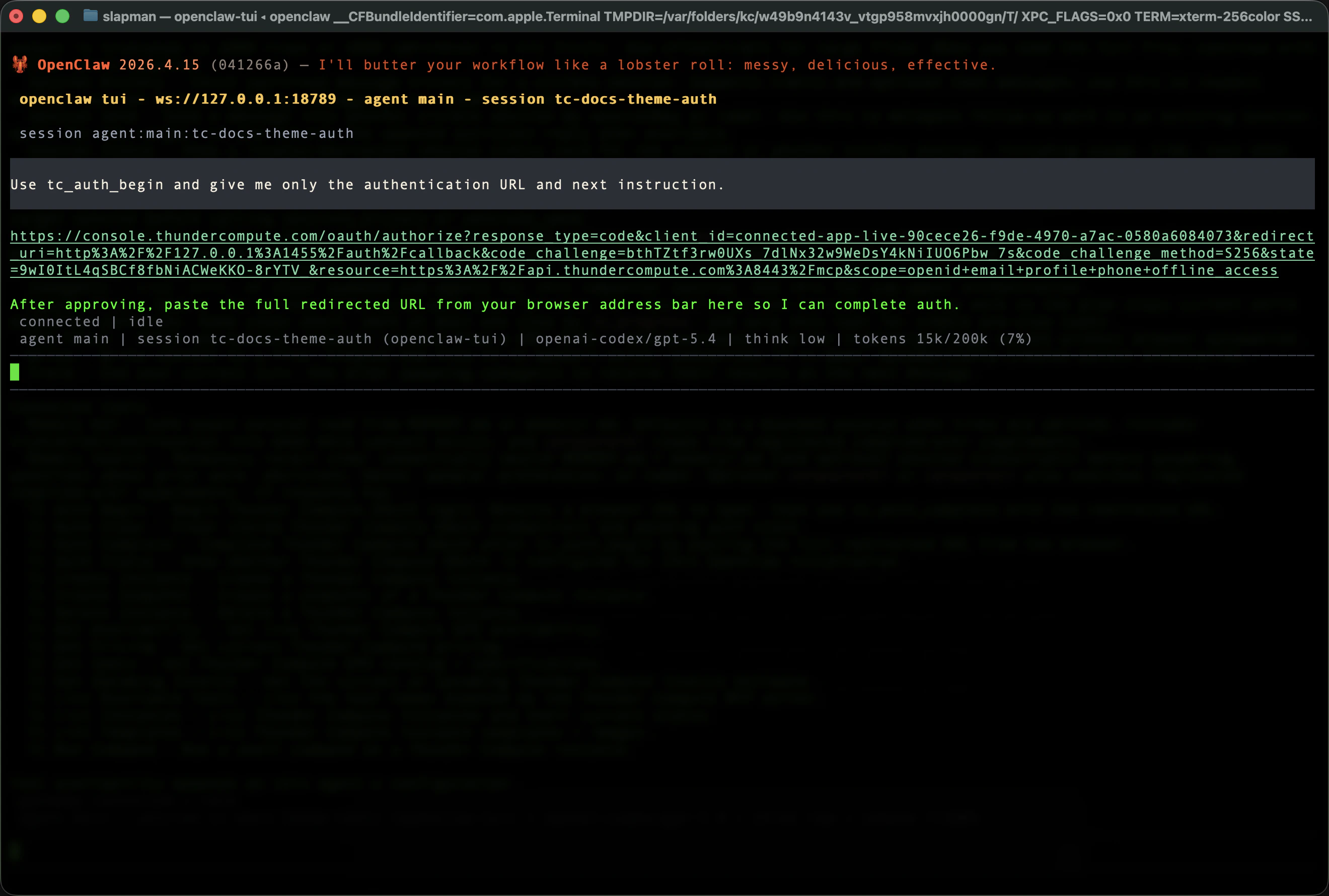
Use tc_auth_begin and give me only the authentication URL and next instruction.
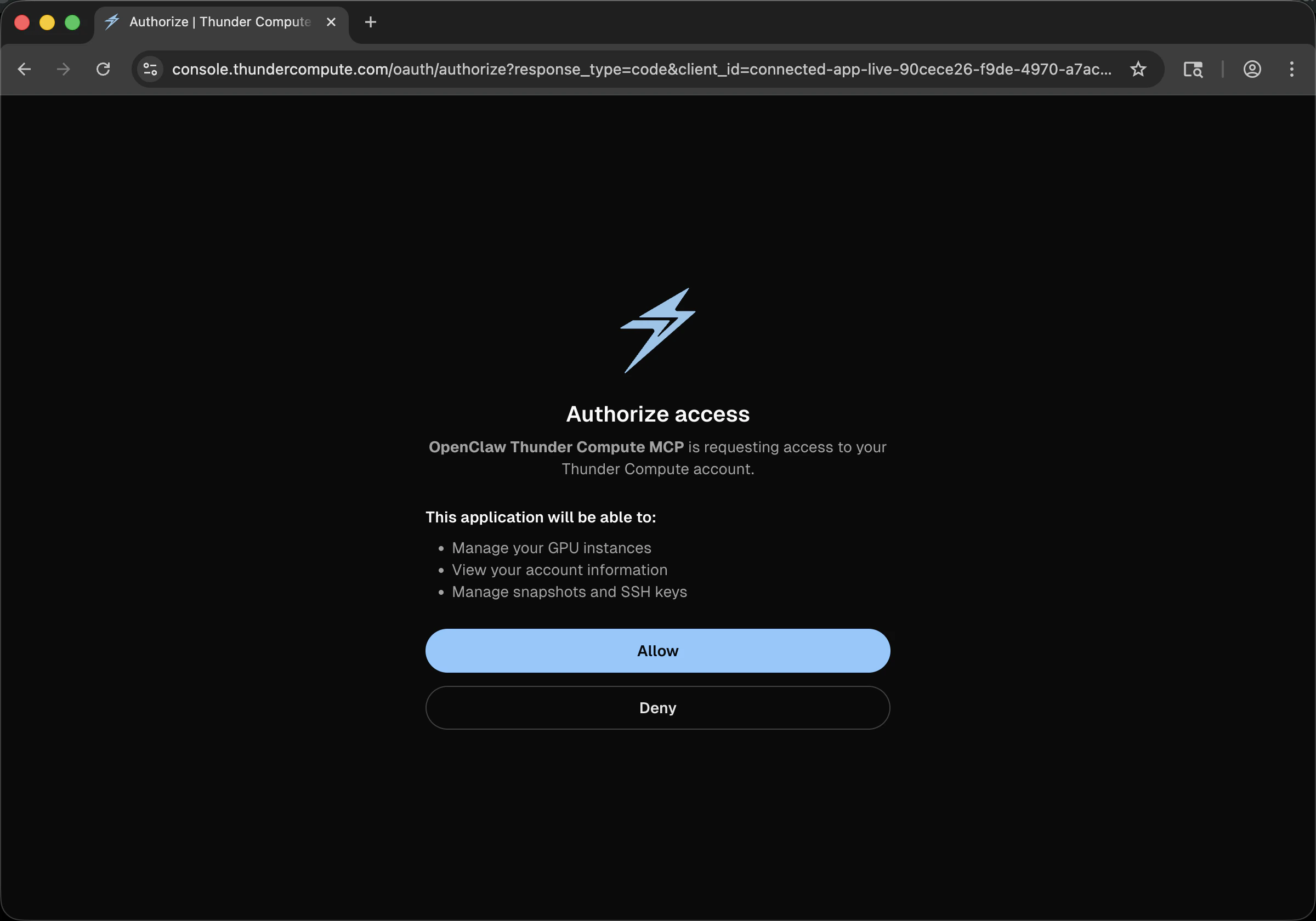
Open the returned URL in your browser. Thunder Compute OAuth URL returned by tc_auth_begin Approve access in the browser. Thunder Compute browser approval screen After approval, copy the full redirected callback URL from the browser address bar and send it back to OpenClaw:
Use tc_auth_complete with this redirected URL: <FULL_REDIRECTED_URL>
Expected result:
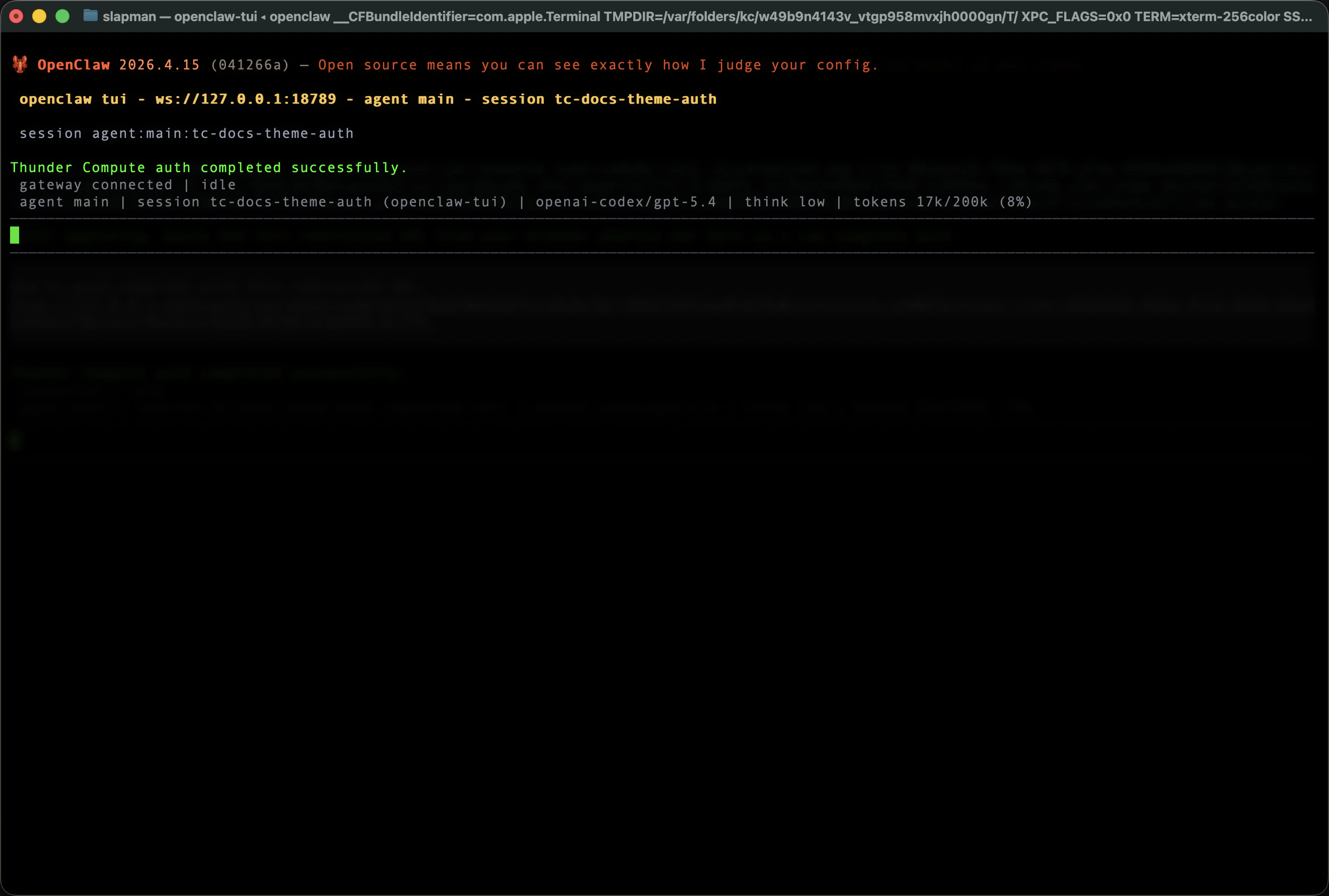
Thunder Compute OAuth completed successfully.
Thunder Compute OAuth completion success
The redirected callback URL contains a short-lived authorization code. Treat it as sensitive until authentication is complete.
Thunder Compute access tokens are short-lived. The plugin stores the refresh token from OAuth and refreshes access automatically when possible. To check the current auth state, ask:
Use tc_auth_status
If refresh fails, rerun tc_auth_begin and tc_auth_complete.

Verify Live Thunder Compute Connectivity

Ask OpenClaw to list the live MCP tool surface:
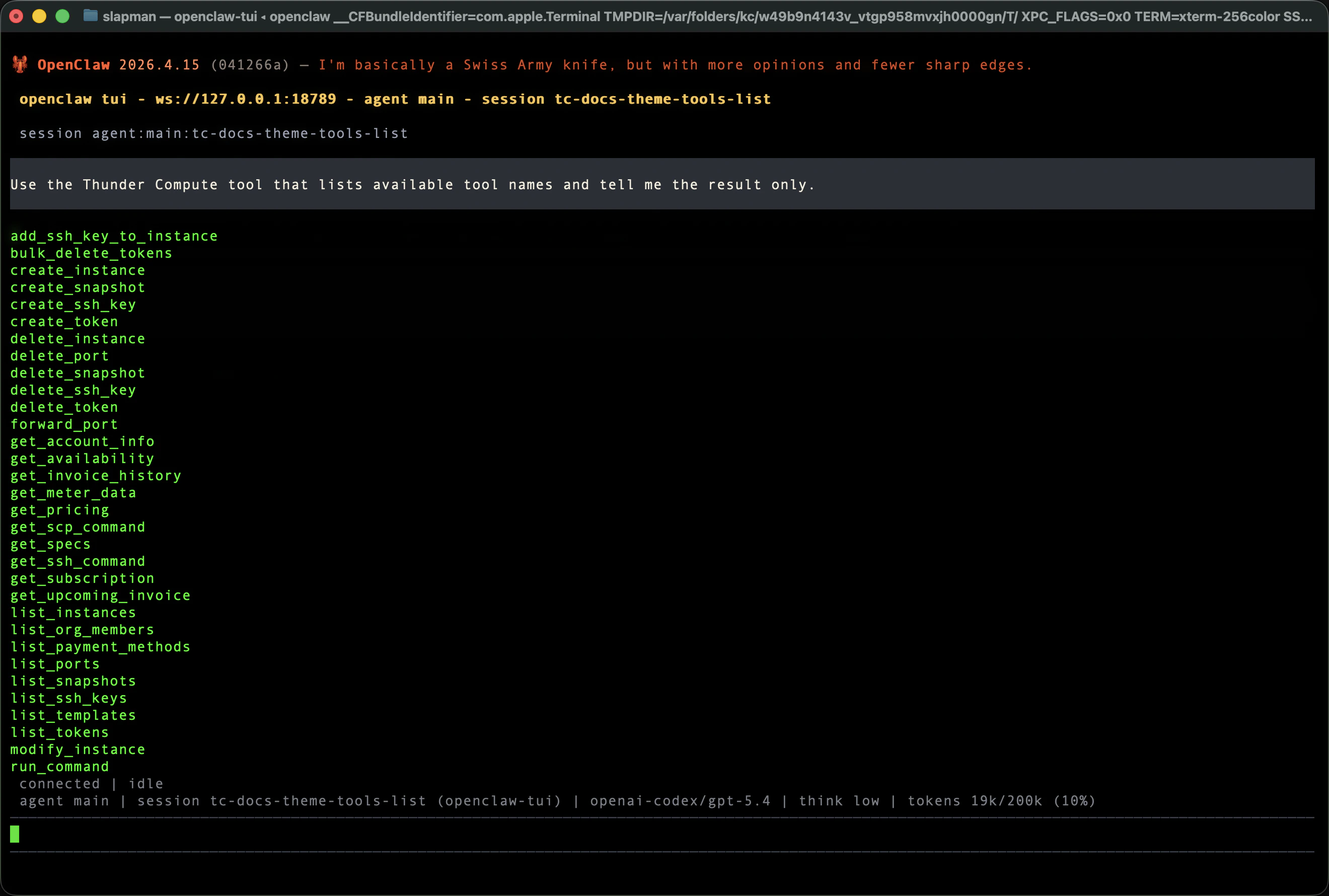
Use the Thunder Compute tool that lists available tool names and tell me the result only.
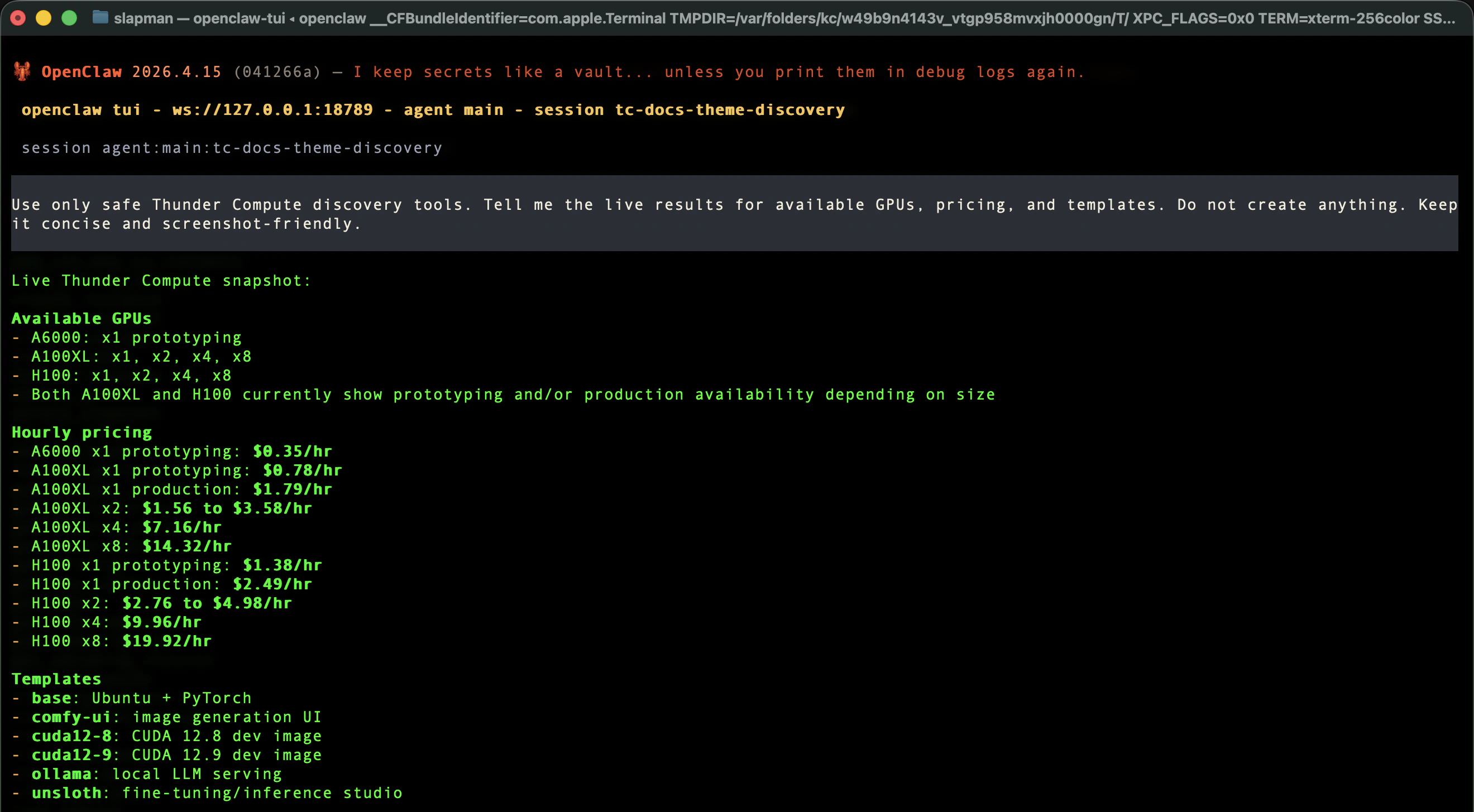
Live Thunder Compute MCP tool enumeration Then run safe discovery. This does not create an instance:
Use only safe Thunder Compute discovery tools. Tell me the live results for available GPUs, pricing, and templates. Do not create anything.
Thunder Compute availability pricing and template discovery

Run Your First GPU Smoke Test

Use a short lifecycle test before doing real work:
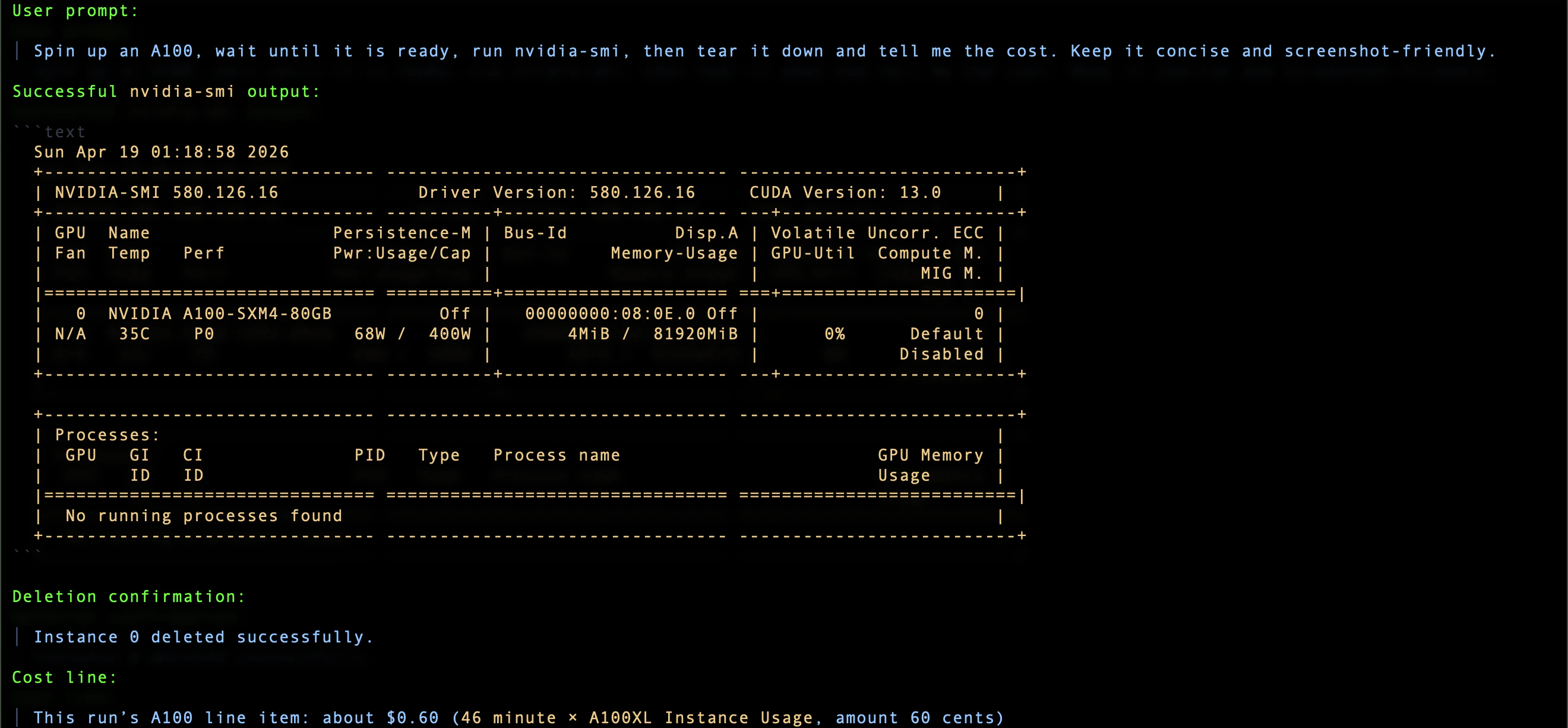
Spin up an A100, wait until it is ready, run `nvidia-smi`, then tear it down and tell me the cost.
The agent should:
  1. Create a Thunder Compute A100 instance.
  2. Wait until it is command-ready.
  3. Run nvidia-smi.
  4. Delete the instance.
  5. Report the invoice line or approximate cost.
Successful nvidia-smi output should show an NVIDIA GPU, driver version, CUDA version, and exit code 0. Thunder Compute instances may take a minute to become ready. This is expected; the agent should wait until the instance is running before retrying the command. Successful A100 nvidia-smi run After teardown, confirm the agent reports deletion and cost. Successful Thunder Compute teardown and cost report
Everyday Usage Prompts

Check availability and pricing:
What GPU types are available right now, how much do they cost, and what templates can I choose from? Do not create anything yet.
Run a short command:
Spin up an A100, run `python --version && nvidia-smi`, then tear it down and tell me the cost.
Use a template:
Spin up an A100 with the CUDA 12.9 template, run `nvcc --version`, then tear it down and tell me the cost.
Thunder Compute templates are preconfigured environments for common AI workflows. The current public docs call out base, ollama, and comfy-ui as common templates, and template services may require a start command such as start-ollama or start-comfyui. Create a snapshot only when you want to preserve state:
Create an A100 instance, run `echo hello`, create a snapshot named hello-test, then delete the instance and tell me the cost.
Leave an instance running only when you intentionally want to keep paying for it:
Spin up an A100 and leave it running. Tell me the instance ID and current hourly cost.

How The Agent Should Behave

The Thunder Compute skill instructs the agent to:
  • use live discovery when the request is open-ended
  • create the instance the user asked for when the request is specific
  • wait through QUEUED or STARTING until the instance is ready
  • run the requested command
  • show stdout, stderr, and exit code when relevant
  • create snapshots only when asked
  • delete instances by default
  • report cost in the same response as teardown
If the user explicitly says to leave an instance running, it remains billable until the user or agent deletes it.

Known Beta Caveats

Skill And Plugin Are Both Required

The skill alone does not create GPU instances. It only teaches behavior. Real Thunder Compute operations happen through the thunder-compute plugin tools.

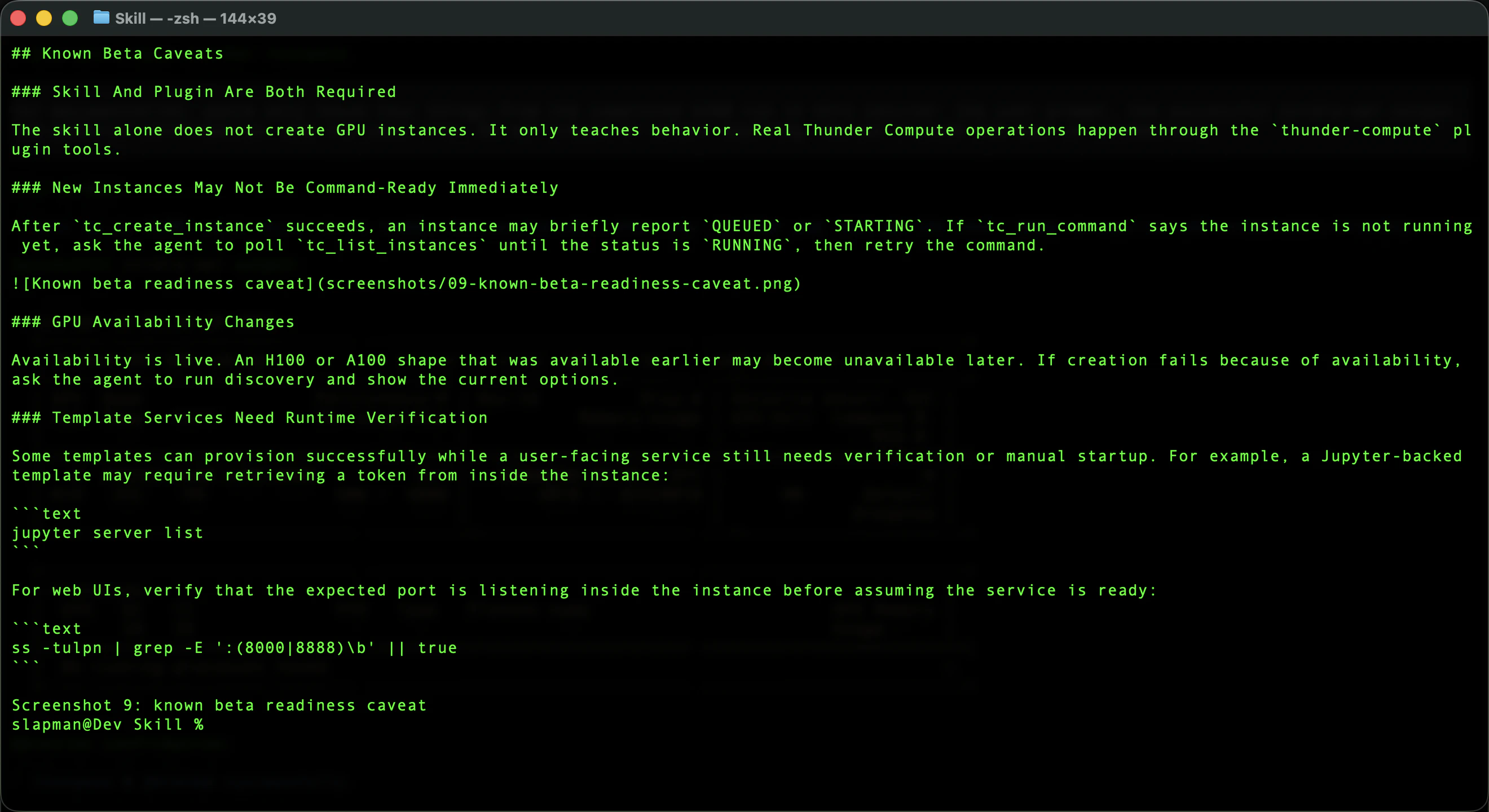
New Instances May Not Be Command-Ready Immediately

After tc_create_instance succeeds, an instance may briefly report QUEUED or STARTING. If tc_run_command says the instance is not running yet, ask the agent to poll tc_list_instances until the status is RUNNING, then retry the command. Known beta readiness caveat
GPU Availability Changes

Availability is live. An H100 or A100 shape that was available earlier may become unavailable later. If creation fails because of availability, ask the agent to run discovery and show the current options.

Template Services Need Runtime Verification

Some templates can provision successfully while a user-facing service still needs verification or manual startup. For example, a Jupyter-backed template may require retrieving a token from inside the instance:
jupyter server list
For web UIs, verify that the expected port is listening inside the instance before assuming the service is ready:
ss -tulpn | grep -E ':(8000|8888)\b' || true

These Thunder Compute docs explain the underlying concepts used by this OpenClaw beta: The docs MCP server page is for hosting Thunder Compute documentation locally for AI tools. Users do not need to install that docs MCP server to use this OpenClaw beta; the OpenClaw plugin connects to the Thunder Compute MCP endpoint internally.

Troubleshooting

Thunder Compute tools do not appear

Check:
  • the plugin is installed with openclaw plugins inspect thunder-compute
  • the plugin is enabled
  • tools.alsoAllow includes "thunder-compute"
  • the gateway was restarted after configuration
Useful commands:
openclaw plugins inspect thunder-compute
openclaw config get plugins.entries.thunder-compute.enabled
openclaw config get tools.alsoAllow
openclaw gateway restart

Authentication Fails Or Expires

First check auth status:
Use tc_auth_status
Access tokens are short-lived and should refresh automatically when a refresh token is available. If auth is missing or refresh fails, restart the OAuth flow:
Use tc_auth_begin and give me only the authentication URL and next instruction.
Then approve in the browser and pass the redirected callback URL to:
Use tc_auth_complete with this redirected URL: <FULL_REDIRECTED_URL>
To reset stored Thunder Compute OAuth state:
Use tc_auth_clear
Then authenticate again.

Instance creation fails

Ask for live options:
Use only safe Thunder Compute discovery tools. Tell me the live availability, pricing, and templates. Do not create anything.
Then retry with a currently available GPU and valid template.

The command says the instance is still starting

Ask:
Poll tc_list_instances until the instance is RUNNING, then retry the command.

You are unsure whether anything is still billing

Ask:
List my Thunder Compute instances and tell me whether anything is still running or billing.
If anything should be stopped:
Delete the Thunder Compute instance you created and report the result and cost.

Summary

Thunder Compute for OpenClaw beta gives your agent a real GPU lifecycle:
  • discover live GPU options
  • authenticate with Thunder Compute
  • create a GPU instance
  • run commands
  • tear down by default
  • report cost
Use the A100 smoke test first. Once that works, use the same pattern for real workloads.